
A Simple Java Image Viewer
Understanding the Math Behind Image Scaling, Zooming, and Centering in Java Swing

In this post, we will explore the essential concepts of handling coordinate systems by mapping image coordinates to pixel coordinates. To demonstrate this image manipulation directly, we will build a simple image viewer. This application uses Java Swing components. If you aren’t familiar with Swing, feel free to check out the official documentation.
1. Viewer Layout
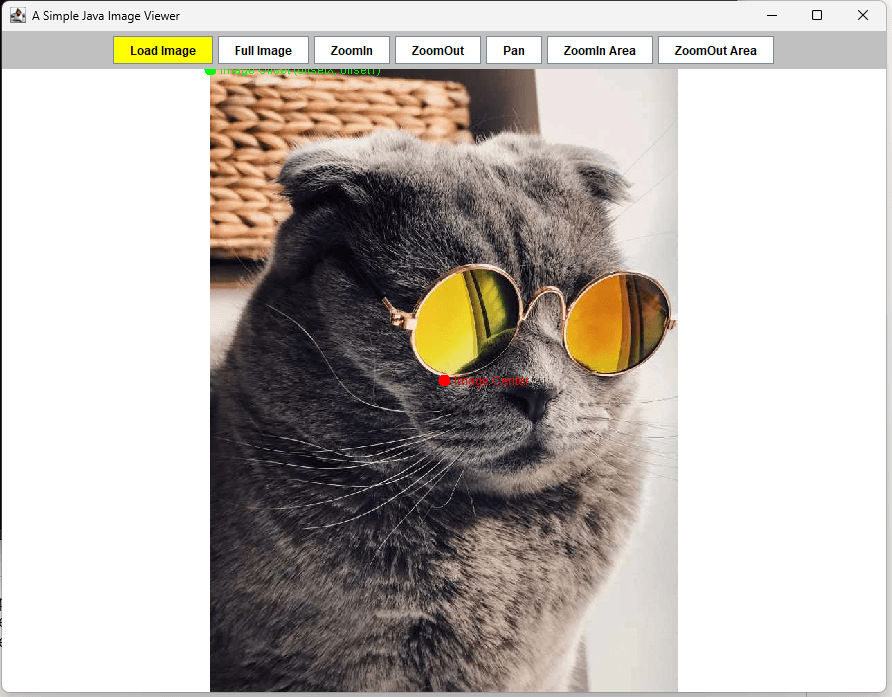
The UI layout consists of a top toolbar for image manipulation and a main panel to render the processed image. The top toolbar includes the following text buttons:
- Load Image: Loads an image from the local system.
- Full Image: Resets the view to fit the entire image within the panel.
- Zoom In: Magnifies the image from its center at a fixed ratio.
- Zoom Out: Shrinks the image from its center at a fixed ratio.
- Pan: Moves the image around using mouse drag events.
- ZoomIn Area: Zooms in on a specific region selected by mouse dragging.
- ZoomOut Area: Zooms out based on the scale of a user-drawn rectangle.”
Our SimpleImageViewer is implemented as a JFrame class with an initial window size of 900 by 700 pixels, as shown in the code below:
public SimpleImageViewer() {
	this.setTitle("...");
	this.setSize(900, 700);
	...
}
The ImagePanel class, a custom JPanel, is responsible for rendering and modifying the selected image.
public SimpleImageViewer() {
	this.setSize(900, 700);
	...

	imagePanel = new ImagePanel();
}

class ImagePanel extends JPanel {
    ...
}
One important detail to note is that the actual size of the ImagePanel inside our 900×700 SimpleImageViewer is not determined initially. It remains undefined until the layout manager calculates the dimensions after setVisible(true) is invoked.
public static void main(String[] args) {
	SwingUtilities.invokeLater(new Runnable() {
		@Override
		public void run() {
			new SimpleImageViewer().setVisible(true);
		}
	});
}
2. Image Loading
For common image formats like PNG and JPEG, you can load the image file into a BufferedImage by calling the static read method of the ImageIO class. Once loaded, you can pass this object to the ImagePanel using setImage().
try {

	File imageFile = new File(directory, file);
	BufferedImage img = ImageIO.read(imageFile);

	imagePanel.setImage(img);
} catch (Exception ex) {
	ex.printStackTrace();
	JOptionPane.showMessageDialog(this, "Fail to load Image", "Error", JOptionPane.ERROR_MESSAGE);
}
Once successfully loaded, this BufferedImage will be rendered onto the ImagePanel. This is handled by the paintComponent() method, which is triggered whenever the panel needs to paint or refresh its UI.
class ImagePanel extends JPanel {
    ...

	@Override
	protected void paintComponent(Graphics g) {
		super.paintComponent(g);

		if (image == null) return;

		AffineTransform at = g2d.getTransform();

        // Apply image transformation matrix
        g2d.translate(offsetX, offsetY);
        g2d.scale(zoomFactor, zoomFactor );
        g2d.drawImage(image, 0, 0, null);

        g2d.setTransform(at);

		...
	}

	...

}
The rendering pipeline of the BufferedImage object is handled by Graphics2D in the following order:
- Translate: Applies the offset to move the coordinate system.
- Scale: Adjusts the image dimensions based on the
zoomFactor. - Draw: Renders the image onto the screen via
drawImage().
During this process, the AffineTransform class ensures that the rendering transformations maintain the proper aspect ratio, preventing the image from becoming distorted or squeezed.”
3. Image to Screen Mapping
Image Screen Mapping is the process of mapping image coordinates (x’, y’) to screen coordinates (x, y) while maintaining the correct aspect ratio.
3.1. Fix Image to Screen
To fit an image within a screen without distortion, we calculate the scaling factor by comparing the aspect ratios.
Example: Suppose we have an image with a height of 500px and a width of 200px, and we want to map it to a screen that is 1000px in height and width.
- Calculate the Ratios:
- Ratio for Height:
- Ratio for Width: 1000/200 = 5
- Select the Scale Factor: To ensure the entire image fits within the screen, we choose the minimum of the two ratios: 2.
- Apply Scaling:
- New Height:
- New Width:
The scaled image dimensions become 1000px (H) x 400px (W).
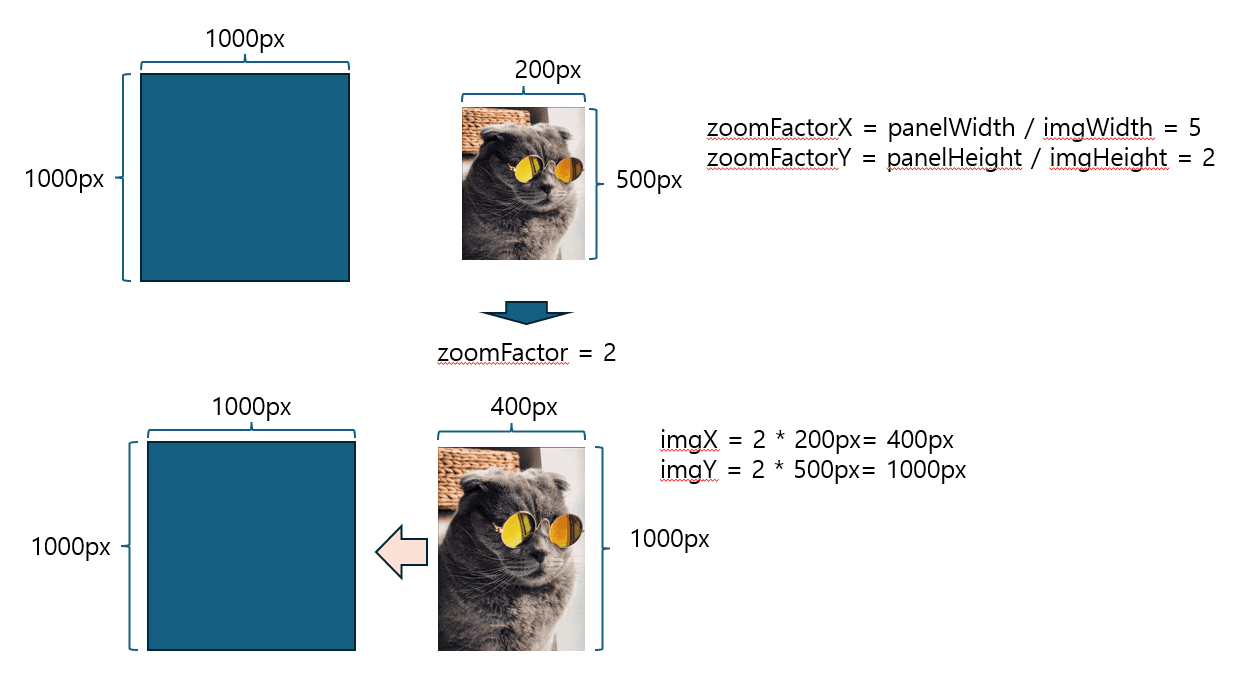
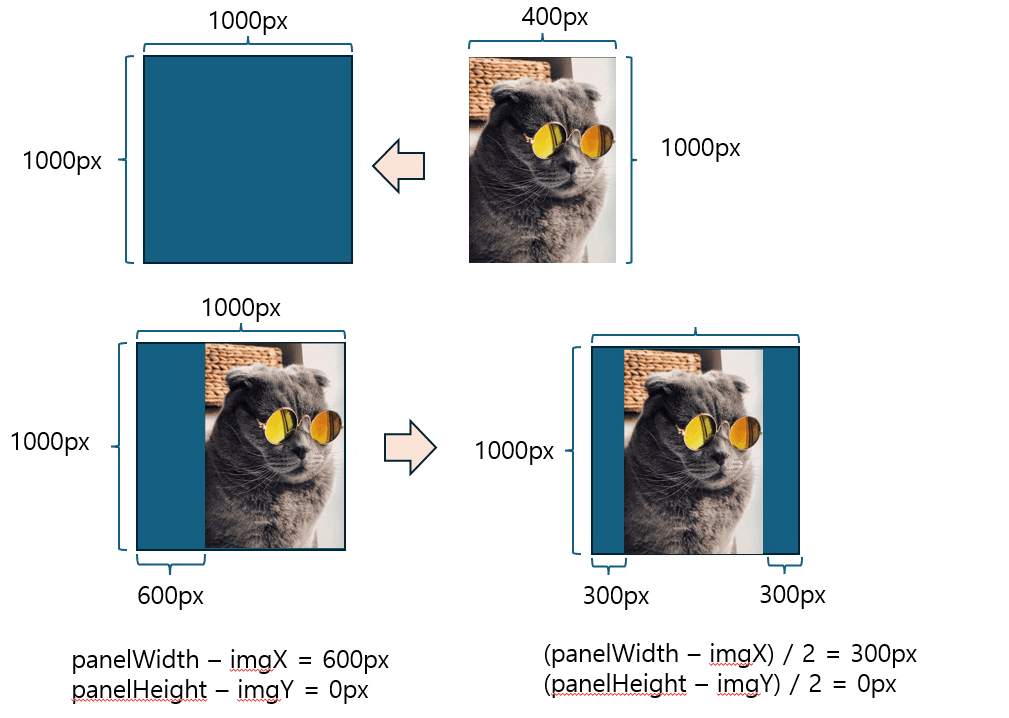
Once the image is scaled, the final step is to center it within the screen. To achieve this, we calculate the offset (the top-left position).
- Calculate the Remaining Space: Subtract the scaled image dimensions from the screen dimensions:
- Height difference:
- Width difference:
- Calculate the Offset: Divide the differences by 2 to center the image:
- Y-offset:
- X-offset:
Applying an offset of (300, 0) perfectly centers the image on the screen.
4. Full Image
This feature resets the view to display the entire image within the panel boundaries whenever you load, zoom, or pan the image. Below is the fitToScreen() method, which recalculates the scale and offset to fit the image to the screen:
public void fitToScreen() {
	if (image == null) return;

	double panelWidth = this.getWidth();
	double panelHeight = this.getHeight();
	double imgWidth = image.getWidth();
	double imgHeight = image.getHeight();

	// Use the smaller ratio between the panel and the image
	double ratioX = panelWidth / imgWidth;
	double ratioY = panelHeight / imgHeight;
	this.zoomFactor = Math.min(ratioX, ratioY);

	// Calculate offsets for center alignment
	this.offsetX = (panelWidth - (imgWidth * zoomFactor)) / 2.0;
	this.offsetY = (panelHeight - (imgHeight * zoomFactor)) / 2.0;

	this.repaint();
}
Once the JPanel‘s dimensions are determined, you can retrieve its current width and height using the code below:
double panelWidth = this.getWidth();
double panelHeight = this.getHeight();
These values represent the actual panel dimensions for rendering the image. Next, we need to determine the scaling factors by calculating the ratio between the panel size and the real image size for both the X and Y axes.
double ratioX = panelWidth / imgWidth;
double ratioY = panelHeight / imgHeight;

this.zoomFactor = Math.min(ratioX, ratioY);
By choosing the smaller value between ratioX and ratioY, we ensure the image scales proportionally without being cropped. We then calculate the offsetX and offsetY to position the image precisely at the center of the panel. Finally, calling repaint() renders the centered image as implemented in the code below:
this.offsetX = (panelWidth - (imgWidth * zoomFactor)) / 2.0;
this.offsetY = (panelHeight - (imgHeight * zoomFactor)) / 2.0;

this.repaint();
The following formulas calculate the offsets needed to center the image on the panel:
(Panel width - Current image width ) / 2 = X (width offset)
(Panel height - Current image height) / 2 = Y (height offset)
Finally, you can apply these calculated offsets to shift the coordinate system using the translate(offsetX, offsetY) method before rendering the image.
g2d.translate(offsetX, offsetY);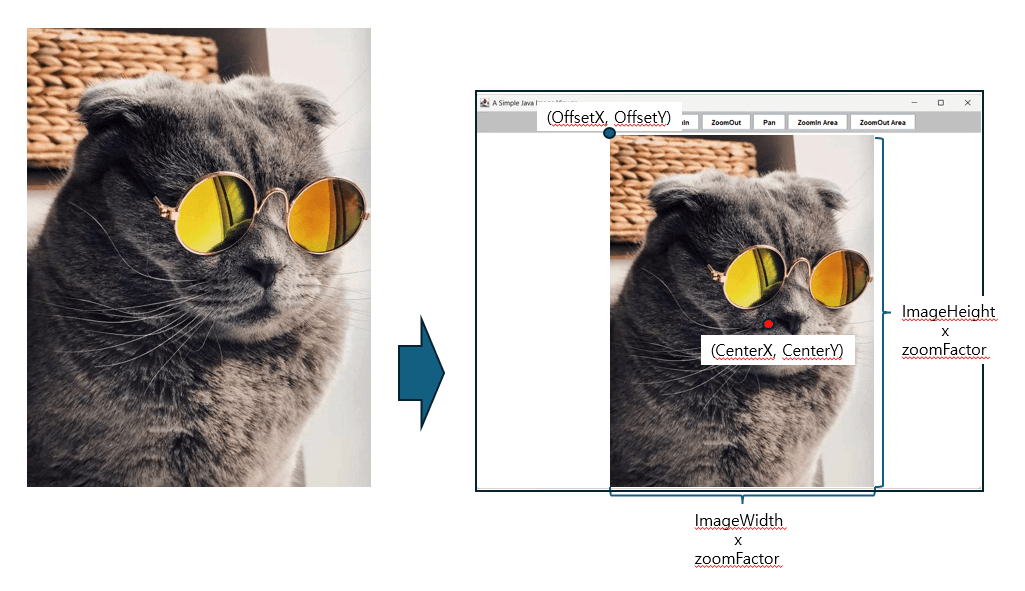
The application panel renders the cat image as follows:
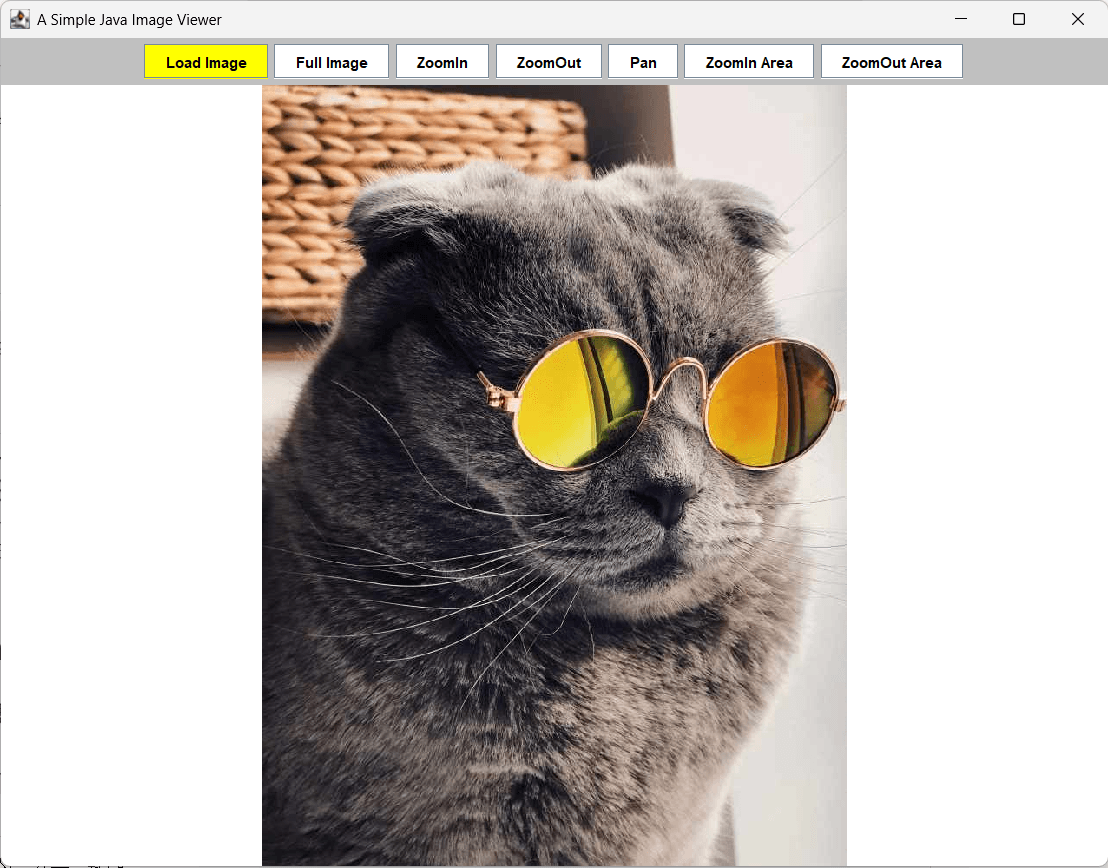
As a reference, the actual center point of the image on the panel can be calculated by applying the zoomFactor to the original image center and then adding the respective offset values:
Center X: offsetX + (imgWidth * zoomFactor) / 2.0

Center Y: offsetY + (imgHeight * zoomFactor) / 2.0
The following figure illustrates the exact center of the image by rendering a red dot directly onto the calculated coordinates.
5. Questions
Here, we can ask two interesting questions about image manipulation.
Q1. What happens if you don’t apply the offset values?
A1. Without the offsets, the image will fail to render at the center of the panel. Because Java Swing’s coordinate system uses the top-left corner as its origin (0,0), Swing draws the image flush against the top-left of the screen, as the following figure shows::
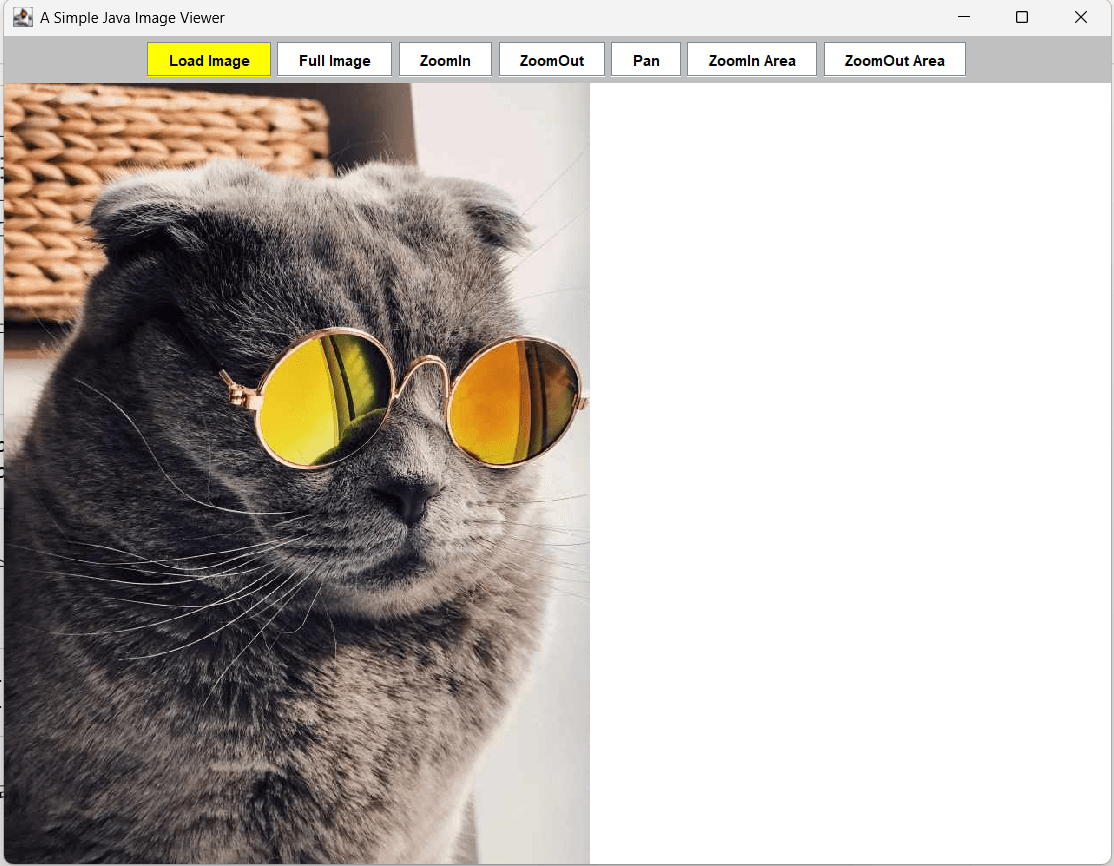
This is why we must call the translate() method using the offset values calculated from our previous formulas before rendering the image.
Q2. What happens if we select the maximum value between ratioX and ratioY? What if you change the method from Math.min() to Math.max() in our Java implementation at this point?
this.zoomFactor = Math.max(ratioX, ratioY);
A2. As expected, our cute cat image will overflow the panel boundaries and become clipped, as shown in the figure below:
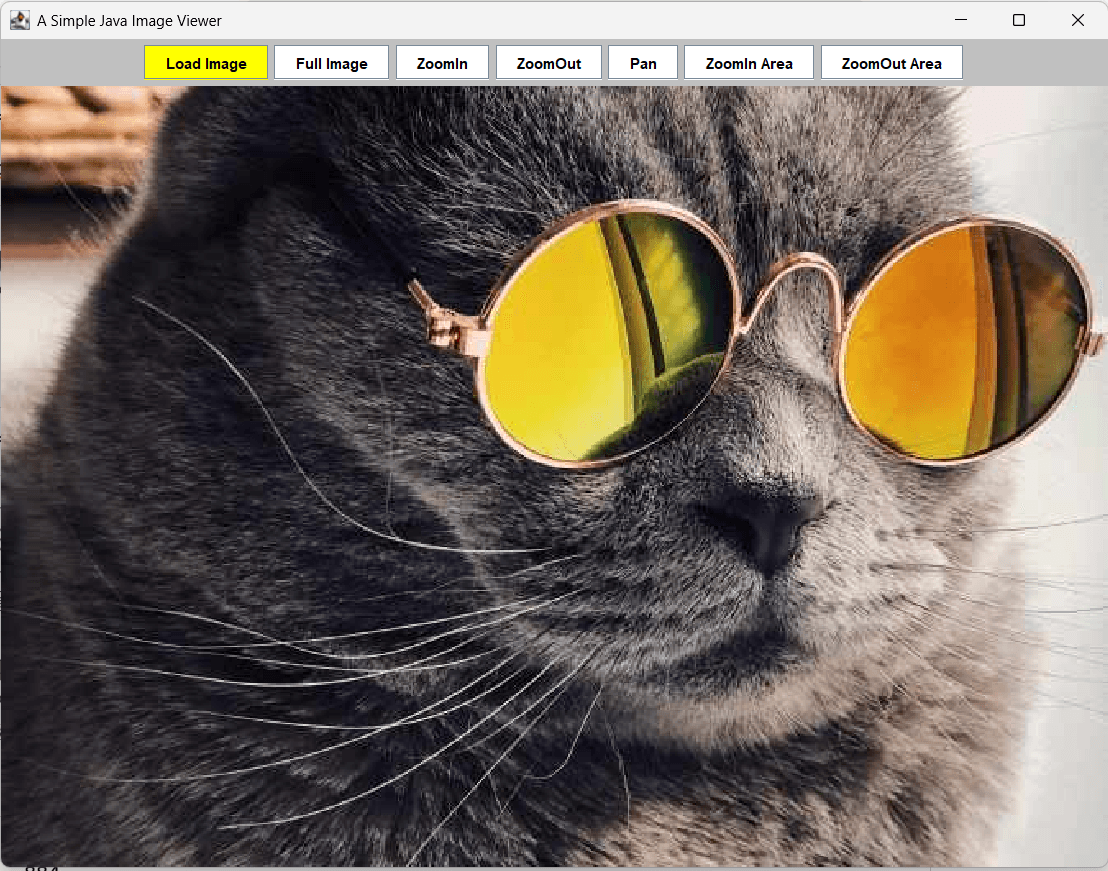
The reason is straightforward. In this scenario, the cat image dimensions are (612, 611) and the current panel size is $(886, 625)$. This yields a ratioX of approximately 1.447 and a ratioY of 1.022. Since ratioX is greater, the image scales based on the width, causing the cat image to expand significantly. We can calculate the resulting image size using the formula below:
Rendered Width = 612 × 1.447 = 886
Rendered Height = 611 × 1.447 = 884
Therefore, the calculated height (884) exceeds the actual height of the panel, which is only 625. This mismatch is exactly why the entire image doesn’t fit inside the panel.
6. Zoom In and Zoom Out
By leveraging the loaded BufferedImage, we can perform various image manipulation tasks, starting with dynamic scaling. When a user clicks the Zoom In or Zoom Out buttons on the menu panel, the image scales at a fixed rate. To implement this, we need to determine a predefined incremental value. For instance, our zoomInCentric() method applies a fixed multiplier of 1.2 to the current scaling factor.
// Zoom in from the center of the screen
public void zoomInCentric() {
    adjustZoom(this.getWidth() / 2.0, this.getHeight() / 2.0, 1.2);
}
Similarly, for the zoom-out operation, a fixed multiplier of 0.8 is applied to the current scaling factor when the Zoom Out button is clicked.
// Zoom out from the center of the screen
public void zoomOutCentric() {
    adjustZoom(this.getWidth() / 2.0, this.getHeight() / 2.0, 1.0 / 1.2);
}
Now, let’s explore what happens inside the shared adjustZoom() method when triggered by these actions. This common method is designed to be called whenever a user clicks the Zoom In or Zoom Out buttons, processing the fixed scaling factors of 1.2 for zooming in and 0.8 for zooming out.
// Common internal logic for zooming
private void adjustZoom(double centerX, double centerY, double factor) {
	if (image == null) return;

	double oldZoom = zoomFactor;
	zoomFactor *= factor;

	if (zoomFactor < 0.05) zoomFactor = 0.05;
	if (zoomFactor > 50.0) zoomFactor = 50.0;

	offsetX = centerX - (centerX - offsetX) * (zoomFactor / oldZoom);
	offsetY = centerY - (centerY - offsetY) * (zoomFactor / oldZoom);
	this.repaint();
}
First, we save the current zoom ratio in a temporary variable.
double oldZoom = zoomFactor;
if (zoomFactor < 0.05) zoomFactor = 0.05; if (zoomFactor > 50.0) zoomFactor = 50.0;
Next, we can calculate the updated top-left $X$ and $Y$ offsets using the following formula:
offsetX = centerX - (centerX - offsetX) * (zoomFactor / oldZoom);
offsetY = centerY - (centerY - offsetY) * (zoomFactor / oldZoom);
If we simply increase or decrease the zoomFactor without recalculating these offsets, the image’s top-left coordinate remains strictly fixed. Consequently, this single point anchors the entire zoom operation, causing the image to expand or shrink in only one direction instead of staying centered.
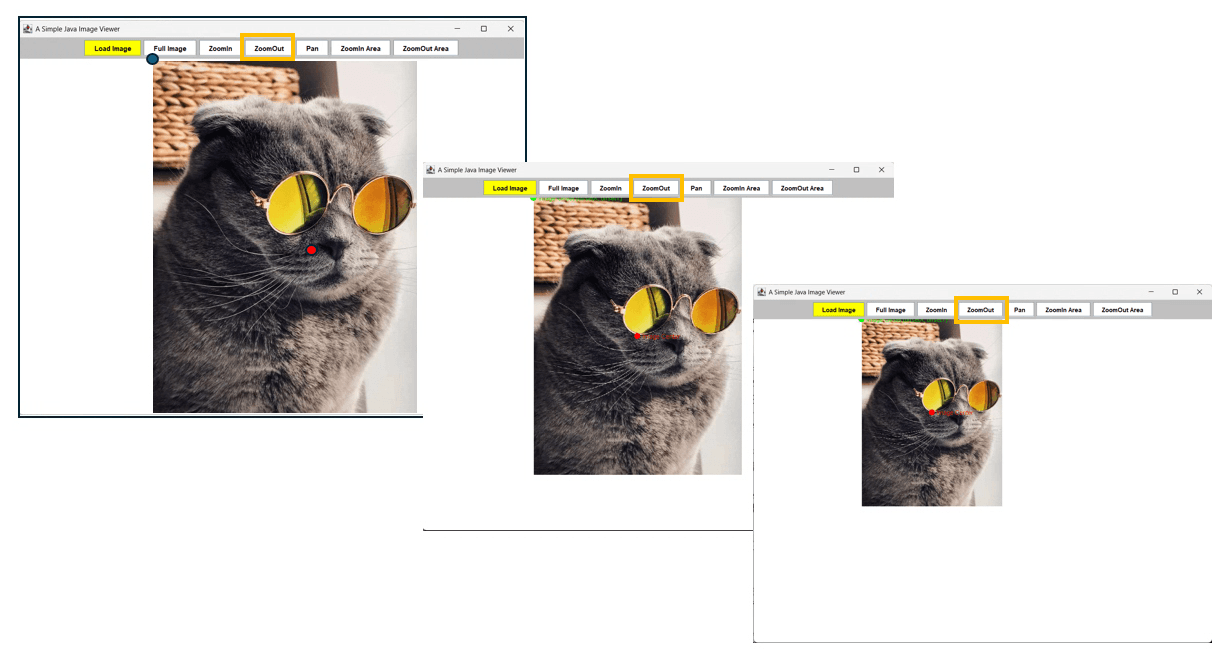
Therefore, we must recalculate the new offsets every time the image zooms in or out. This adjustments ensures that the center of the cat image remains perfectly aligned with the center of the panel during scaling.
6.1. Understanding Zoom
Let’s break down the mathematical meaning behind each component of our formula:
(centerX - offsetX): This represents the distance from the current center of the panel to the top-left starting point of the image. This feature resets the view to display the entire image within the panel boundaries whenever you load, zoom, or pan the image.(zoomFactor / oldZoom): This ratio represents the net change in magnification (the new scale factor divided by the previous scale factor). For example, during a 1.2x enlargement, this multiplier becomes exactly1.2.centerX - (New Distance): Multiplying the original distance(centerX - offsetX)by the magnification ratio yields the new distance that must exist between the panel’s center and the expanded image’s origin. By subtracting this scaled distance from the staticcenterX, we inversely calculate the exact, updated top-left coordinate (offsetX) required to keep the image perfectly centered as it scales.
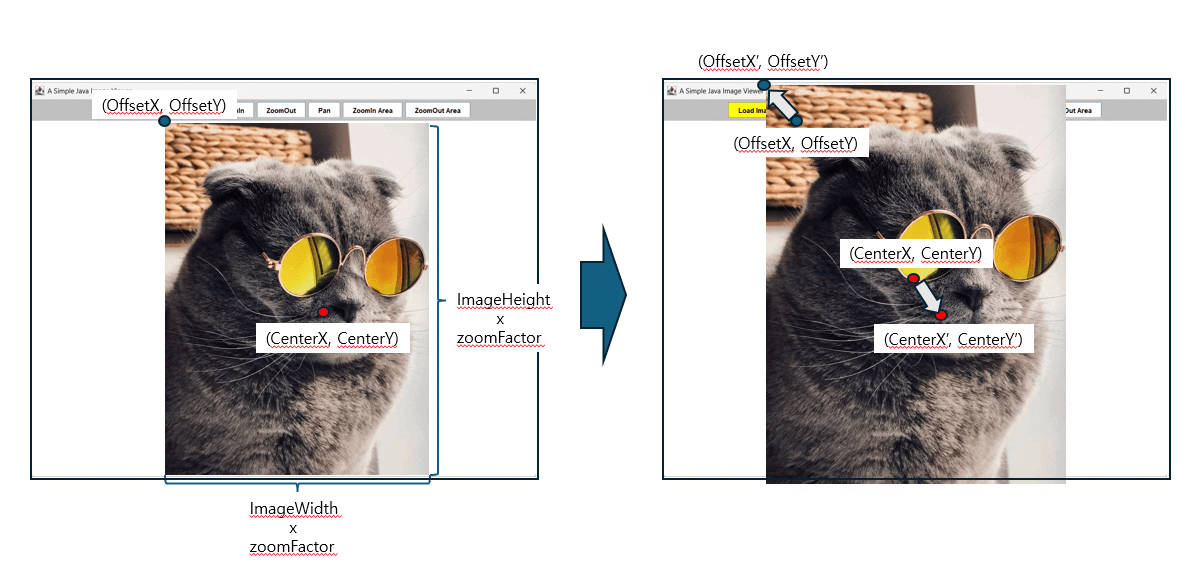
In summary, during a zoom operation, the top-left offset retreats in the negative direction while the center expands in the positive direction. Because the relative distance—represented as (centerX - offsetX)—scales outward from the center, we can determine the new top-left position by multiplying this distance by our magnification ratio (zoomFactor / oldZoom) and subtracting the result from the static centerX.
Mathematically, the final transformation formula for both axes is structured as follows:
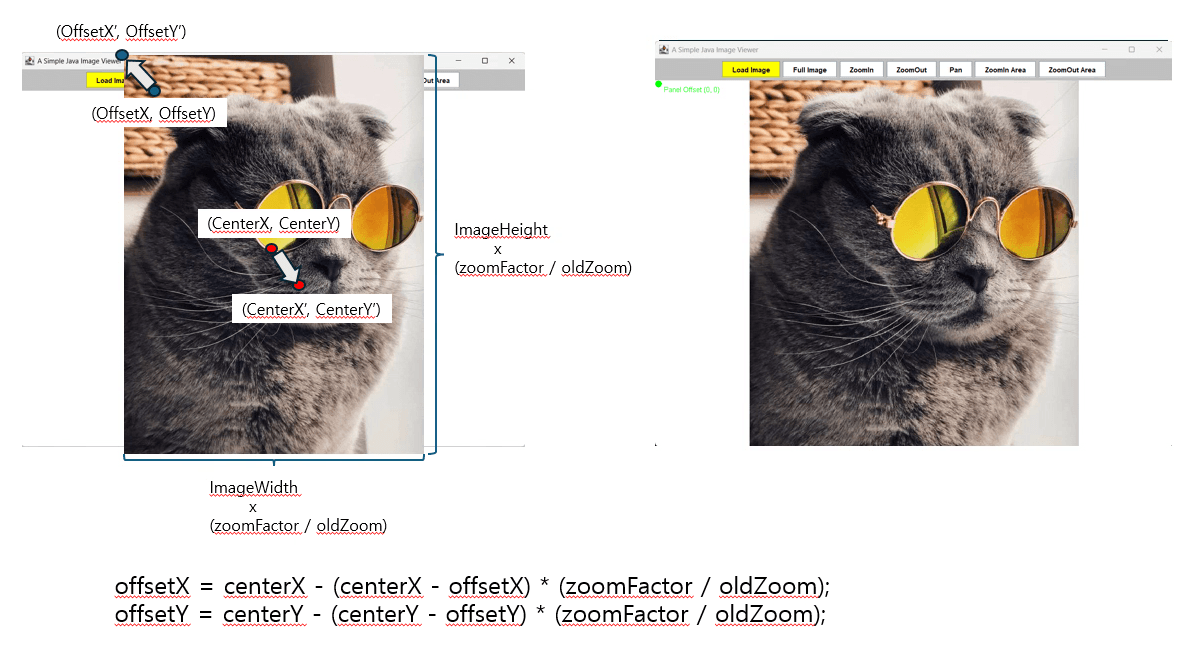
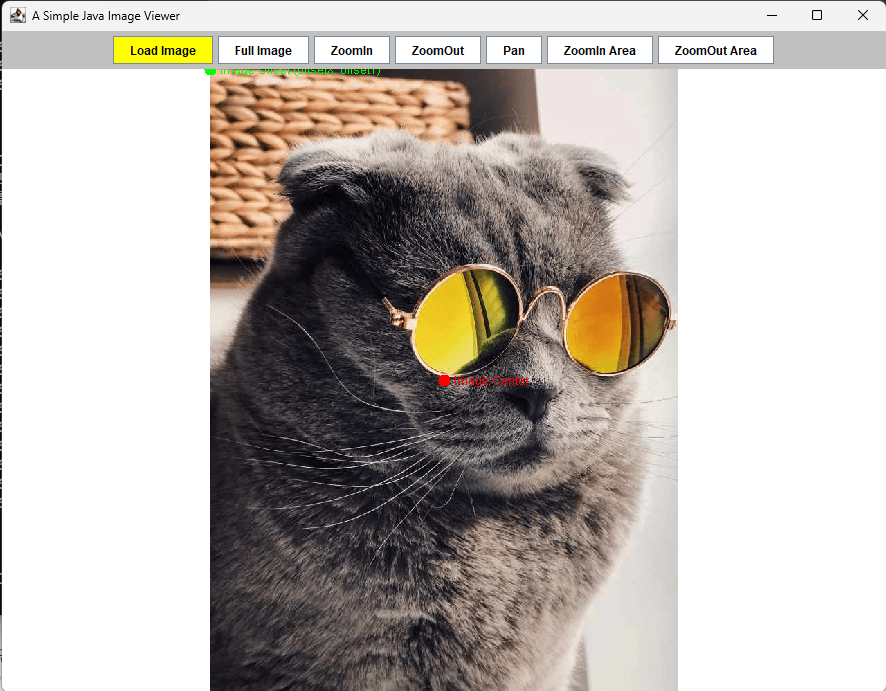
As a result, the image scales dynamically while maintaining its anchor point, perfectly presenting our cat centered within the panel upon zooming in.
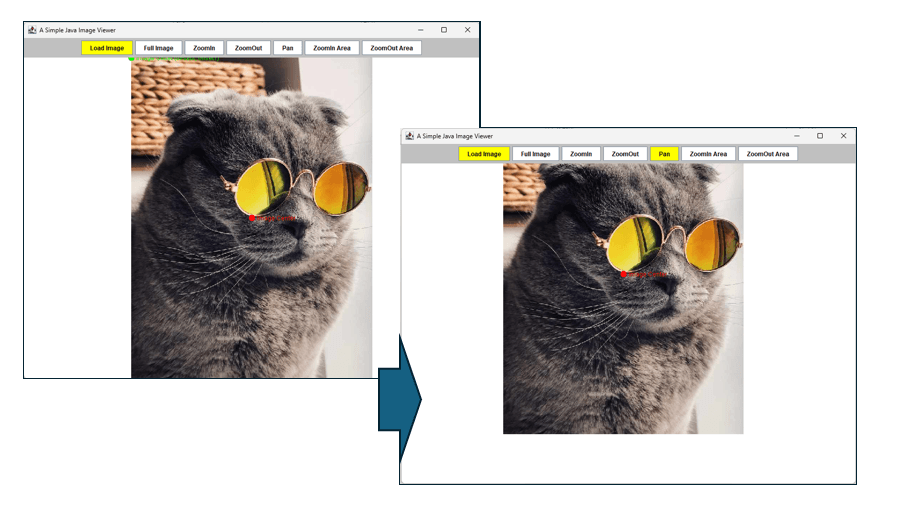
7. Panning
Now, let’s explore how to implement image panning. This feature works through the interaction between the menu button events and the panel’s mouse events. First, we need to create a button labeled ‘Pan’.
btnModePan = createImageButton("Pan");
We implement the button action using the ActionListener interface. When the button is clicked, it calls setInteractionMode() and passes ImagePanel.MODE_PAN as an argument to switch the application’s state into panning mode.
btnModePan.addActionListener(new ActionListener() {
	@Override
	public void actionPerformed(ActionEvent e) {
		resetButtonColors();
		btnModePan.setBackground(Color.YELLOW);
		imagePanel.setInteractionMode(ImagePanel.MODE_PAN);
	}
});
Internally, the panning operation is managed by the ImageMouseListener class, which implements the MouseListener interface. Once registered to the ImagePanel, this listener triggers the panning logic based on the user’s mouse interactions.
public ImagePanel() {
	this.setBackground(Color.WHITE);

	ImageMouseListener listener = new ImageMouseListener();
	this.addMouseListener(listener);
	this.addMouseMotionListener(listener);
	this.addMouseWheelListener(listener);
}
When the panning operation begins, the listener captures and stores both the initial mouse pressed coordinates and the current image offsets as starting reference points, as shown in the following code:
private class ImageMouseListener extends MouseAdapter {

	@Override
	public void mousePressed(MouseEvent e) {
		if (image == null) return;
		startPoint = e.getPoint();
		currentPoint = e.getPoint();
		isDragging = true;
	}
    ...
}
When the mouse is dragged, the mouseDragged() method of the ImageMouseListener continuously recalculates and updates the offsetX and offsetY values, then refreshes the screen to render the movement in real-time:
private class ImageMouseListener extends MouseAdapter {

	...

	@Override
	public void mouseDragged(MouseEvent e) {
		if (image == null || startPoint == null) return;
		currentPoint = e.getPoint();

		if (currentMode == MODE_PAN) {
			// Perform panning
			int dragX = e.getX() - startPoint.x;
			int dragY = e.getY() - startPoint.y;
			offsetX += dragX;
			offsetY += dragY;
			startPoint = e.getPoint();
		}
		repaint();
	}
    ...
}
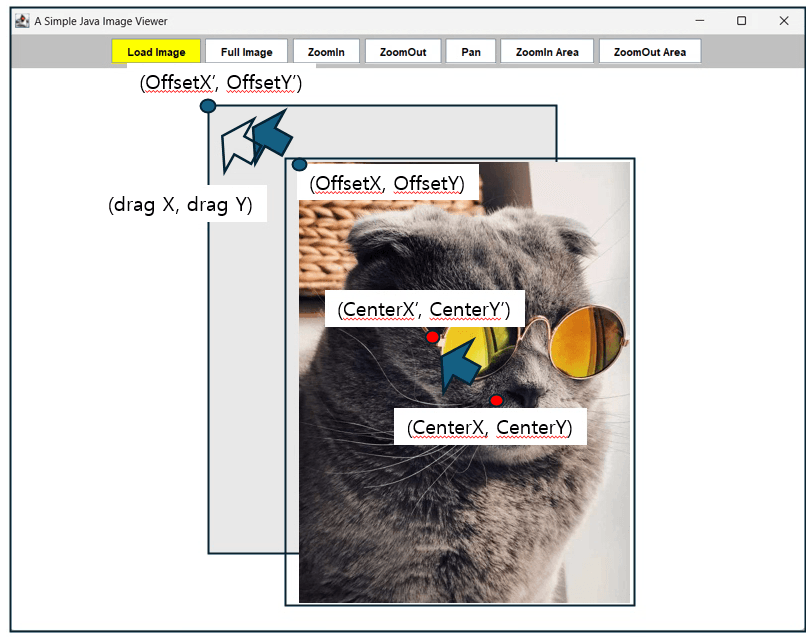
Calling the repaint() method automatically triggers the Swing rendering pipeline, invoking paintComponent() to redraw our cat image at the newly calculated offset coordinates.
@Override
protected void paintComponent(Graphics g) {
	super.paintComponent(g);
	//System.out.println("paintComponent::" + image == null);
	if (image == null) return;

	Graphics2D g2d = (Graphics2D) g;
	AffineTransform at = g2d.getTransform();

	// Apply image transformation matrix
	g2d.translate(offsetX, offsetY);
	g2d.scale(zoomFactor, zoomFactor);
	g2d.drawImage(image, 0, 0, null);

	g2d.setTransform(at);

	...
}
8. Area Zoom In and Out
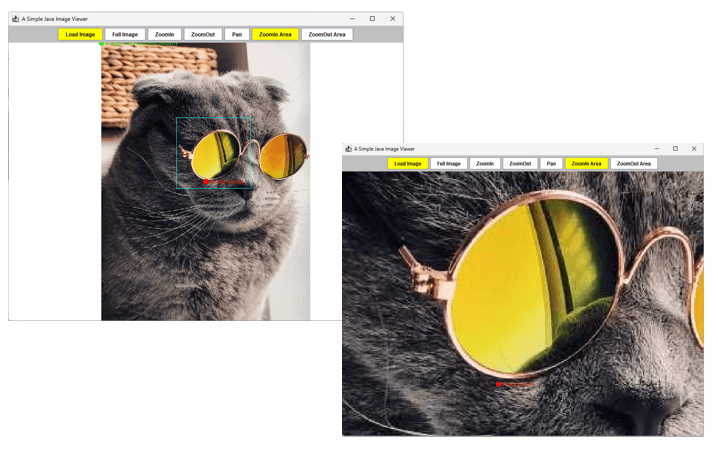
Finally, let’s explore Area Zoom In and Out. Unlike the standard zoom functionality in the previous section—which scales the image by a fixed ratio—this feature dynamically adjusts the magnification and offsets based entirely on a rectangular bounding box drawn by the user.
btnZoomIn = createImageButton("ZoomIn");
btnZoomOut = createImageButton("ZoomOut");

...

btnModeZoomInArea.addActionListener(new ActionListener() {
	@Override
	public void actionPerformed(ActionEvent e) {
		resetButtonColors();
		btnModeZoomInArea.setBackground(Color.YELLOW);
		imagePanel.setInteractionMode(ImagePanel.MODE_ZOOM_IN_AREA);
	}
});

btnModeZoomOutArea.addActionListener(new ActionListener() {
	@Override
	public void actionPerformed(ActionEvent e) {
		resetButtonColors();
		btnModeZoomOutArea.setBackground(Color.YELLOW);
		imagePanel.setInteractionMode(ImagePanel.MODE_ZOOM_OUT_AREA);
	}
});
The ImagePanel.MODE_ZOOM_IN_AREA and MODE_ZOOM_OUT_AREA constants correspond to the respective area zoom buttons. When set, these states notify paintComponent() to continuously render the selection rectangle on the screen, while instructing mouseReleased() to finalize the bounding box calculations once the drag ends.
class ImagePanel extends JPanel {

    // Interaction mode constants
	...
    public static final int MODE_ZOOM_IN_AREA = 1;
    public static final int MODE_ZOOM_OUT_AREA = 2;

   ...

    @Override
    protected void paintComponent(Graphics g) {
        super.paintComponent(g);
		//System.out.println("paintComponent::" + image == null);
        if (image == null) return;

        Graphics2D g2d = (Graphics2D) g;
        AffineTransform at = g2d.getTransform();


        // Apply image transformation matrix
        g2d.translate(offsetX, offsetY);
        g2d.scale(zoomFactor, zoomFactor);
        g2d.drawImage(image, 0, 0, null);

        g2d.setTransform(at);

		// Call debugging point drawing method
        drawOffsetPoint_v0(g2d);

        // Draw a guide rectangle while dragging for area selection
        if (isDragging && startPoint != null && currentPoint != null) {
            if (currentMode == MODE_ZOOM_IN_AREA || currentMode == MODE_ZOOM_OUT_AREA) {
                g.setColor(Color.CYAN);
                Rectangle r = getDragRectangle();
                g.drawRect(r.x, r.y, r.width, r.height);
            }
        }
    }

	...

	// ----------------------------------------------------
    // Mouse Event Handlers
    // ----------------------------------------------------
    private class ImageMouseListener extends MouseAdapter {

        ...

        @Override
        public void mouseReleased(MouseEvent e) {
            if (image == null || !isDragging) return;
            isDragging = false;
            currentPoint = e.getPoint();

            Rectangle dragRect = getDragRectangle();

            // Trigger only if drag area is at least 5px (ignore simple clicks)
            if (dragRect.width > 5 && dragRect.height > 5) {
                double centerX = dragRect.getCenterX();
                double centerY = dragRect.getCenterY();

                if (currentMode == MODE_ZOOM_IN_AREA) {
                    // Calculate the ratio of the selected area
                    double scaleX = (double) getWidth() / dragRect.width;
                    double scaleY = (double) getHeight() / dragRect.height;
                    double areaFactor = Math.min(scaleX, scaleY);

                    // Smoothly adjust zoom targeting the center of the selected area
                    adjustZoom(centerX, centerY, areaFactor);
                }
                else if (currentMode == MODE_ZOOM_OUT_AREA) {
                    // Zoom out inversely proportional to the selected area
                    double scaleX = (double) dragRect.width / getWidth();
                    double scaleY = (double) dragRect.height / getHeight();
                    double areaFactor = Math.max(scaleX, scaleY);

                    adjustZoom(centerX, centerY, areaFactor);
                }
            }
            startPoint = null;
            currentPoint = null;
            repaint();
        }

        ...
    }
}
When the active mode is set to MODE_ZOOM_IN_AREA or MODE_ZOOM_OUT_AREA, the paintComponent() method continuously renders the selection rectangle retrieved dynamically from getDragRectangle().
@Override
protected void paintComponent(Graphics g) {
	...

	// Draw a guide rectangle while dragging for area selection
	if (isDragging && startPoint != null && currentPoint != null) {
		if (currentMode == MODE_ZOOM_IN_AREA || currentMode == MODE_ZOOM_OUT_AREA) {
			g.setColor(Color.CYAN);
			Rectangle r = getDragRectangle();
			g.drawRect(r.x, r.y, r.width, r.height);
		}
	}
}
The getDragRectangle() method utilizes the startPoint and the currentPoint to construct the correct bounding box. It guarantees that the width and height never result in negative values, even if the user drags the mouse backward or upside down.
// Calculate rectangle area from mouse drag coordinates
private Rectangle getDragRectangle() {
	int x = Math.min(startPoint.x, currentPoint.x);
	int y = Math.min(startPoint.y, currentPoint.y);
	int width = Math.abs(startPoint.x - currentPoint.x);
	int height = Math.abs(startPoint.y - currentPoint.y);
	return new Rectangle(x, y, width, height);
}
Taking the absolute value of coordinate differences keeps the width and height positive, preventing rendering errors when drawing rectangles.
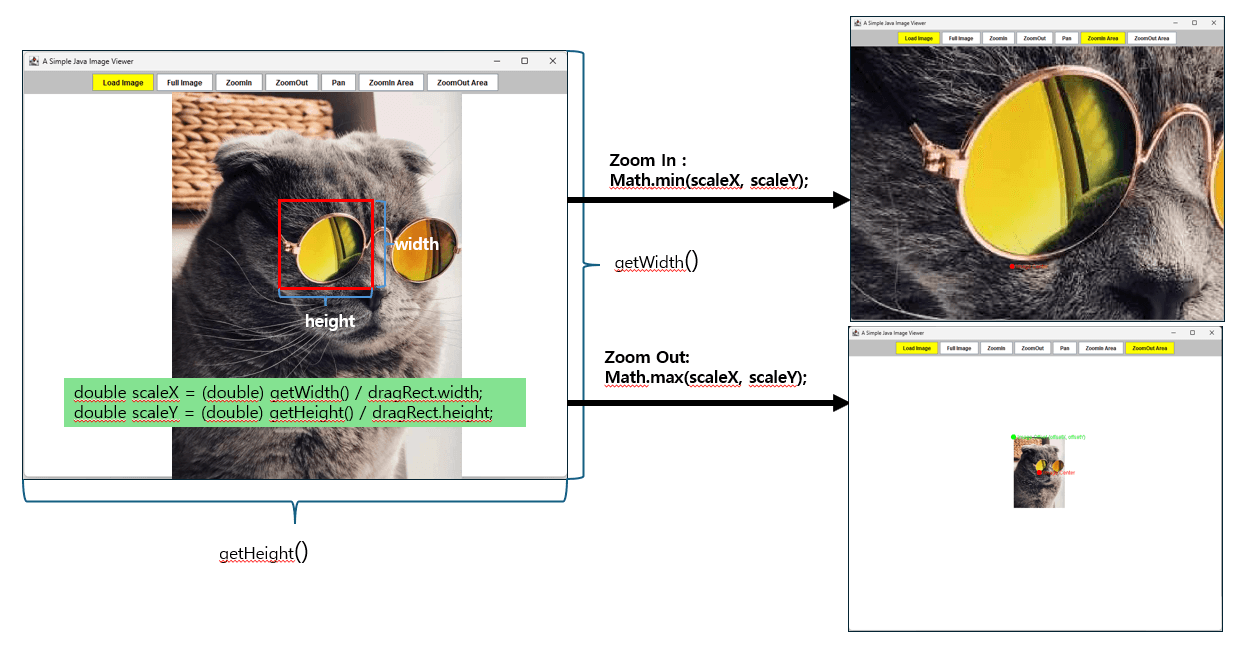
When the user releases the mouse, the application calculates the dimension ratios of the selected area. Depending on the active mode (MODE_ZOOM_IN_AREA or MODE_ZOOM_OUT_AREA), it selects the maximum value for zooming in or the minimum value for zooming out, and then calls the adjustZoom method:
@Override
public void mouseReleased(MouseEvent e) {
	if (image == null || !isDragging) return;
	isDragging = false;
	currentPoint = e.getPoint();

	Rectangle dragRect = getDragRectangle();

	// Trigger only if drag area is at least 5px (ignore simple clicks)
	if (dragRect.width > 5 && dragRect.height > 5) {
		double centerX = dragRect.getCenterX();
		double centerY = dragRect.getCenterY();

		if (currentMode == MODE_ZOOM_IN_AREA) {
			// Calculate the ratio of the selected area
			double scaleX = (double) getWidth() / dragRect.width;
			double scaleY = (double) getHeight() / dragRect.height;
			double areaFactor = Math.min(scaleX, scaleY);

			// Smoothly adjust zoom targeting the center of the selected area
			adjustZoom(centerX, centerY, areaFactor);
		}
		else if (currentMode == MODE_ZOOM_OUT_AREA) {
			// Zoom out inversely proportional to the selected area
			double scaleX = (double) dragRect.width / getWidth();
			double scaleY = (double) dragRect.height / getHeight();
			double areaFactor = Math.max(scaleX, scaleY);

			adjustZoom(centerX, centerY, areaFactor);
		}
	}
	startPoint = null;
	currentPoint = null;
	repaint();
}
9. Conclusion
In this post, we have built a lightweight image viewer using Java Swing. Through this project, we explored the fundamental graphics concepts every developer should know—ranging from basic image rendering to interactive zooming, panning, and area selection.
10. Download Links
- Open JDK 21 : https://jdk.java.net/java-se-ri/21
- Apache Ant 1.9.16 : https://archive.apache.org/dist/ant/binaries/
11. Build and Run
1. Setting environmental variables
- SET JAVA_HOME=C:\DEV\Works\MapService\jdk-21
- SET ANT_HOME=C:\DEV\Tools\apache-ant-1.9.16
2. Run a executable jar under the extracted directory
- java -jar build/dist/SimpleImageViewer.jar
3. Building from source code under the extracted directory
- ant clean & ant
You can download the executable jar with full source code of the simple java image viewer here: A Simple Java Image Viewer.
package com.tobee.swing.viewer;

import java.awt.BorderLayout;
import java.awt.Color;
import java.awt.FileDialog;
import java.awt.Graphics;
import java.awt.Graphics2D;
import java.awt.Point;
import java.awt.Rectangle;
import java.awt.event.ActionEvent;
import java.awt.event.ActionListener;
import java.awt.event.MouseAdapter;
import java.awt.event.MouseEvent;
import java.awt.event.MouseWheelEvent;
import java.awt.geom.AffineTransform;
import java.awt.image.BufferedImage;
import java.io.File;
import javax.imageio.ImageIO;
import javax.swing.JButton;
import javax.swing.JFrame;
import javax.swing.JOptionPane;
import javax.swing.JPanel;
import javax.swing.SwingUtilities;

public class SimpleImageViewer extends JFrame {

    private ImagePanel imagePanel;

    // Button member variables
    private JButton btnLoad;
    private JButton btnFit;
    private JButton btnZoomIn;
    private JButton btnZoomOut;
    private JButton btnModePan;
    private JButton btnModeZoomInArea;
    private JButton btnModeZoomOutArea;

    public SimpleImageViewer() {
        this.setTitle("A Simple Java Image Viewer");
        this.setSize(900, 700);
        this.setDefaultCloseOperation(JFrame.EXIT_ON_CLOSE);
        this.setLocationRelativeTo(null);

        this.setLayout(new BorderLayout());

        imagePanel = new ImagePanel();
        this.add(imagePanel, BorderLayout.CENTER);

        // Top toolbar panel
        JPanel toolBarPanel = new JPanel();
        toolBarPanel.setBackground(Color.LIGHT_GRAY);

        // Create custom text/image buttons
        btnLoad = createImageButton("Load Image");
        btnFit = createImageButton("Full Image");
        btnZoomIn = createImageButton("ZoomIn");
        btnZoomOut = createImageButton("ZoomOut");
        btnModePan = createImageButton("Pan");
        btnModeZoomInArea = createImageButton("ZoomIn Area");
        btnModeZoomOutArea = createImageButton("ZoomOut Area");

        // Highlight the default selected mode button
        btnLoad.setBackground(Color.YELLOW);

        // ----------------------------------------------------
        // Register action listeners (using anonymous inner classes)
        // ----------------------------------------------------
        btnLoad.addActionListener(new ActionListener() {
            @Override
            public void actionPerformed(ActionEvent e) {
                loadImage();
            }
        });

        btnFit.addActionListener(new ActionListener() {
            @Override
            public void actionPerformed(ActionEvent e) {
                imagePanel.fitToScreen();
            }
        });

        btnZoomIn.addActionListener(new ActionListener() {
            @Override
            public void actionPerformed(ActionEvent e) {
                imagePanel.zoomInCentric();
            }
        });

        btnZoomOut.addActionListener(new ActionListener() {
            @Override
            public void actionPerformed(ActionEvent e) {
                imagePanel.zoomOutCentric();
            }
        });

        btnModePan.addActionListener(new ActionListener() {
            @Override
            public void actionPerformed(ActionEvent e) {
                resetButtonColors();
                btnModePan.setBackground(Color.YELLOW);
                imagePanel.setInteractionMode(ImagePanel.MODE_PAN);
            }
        });

        btnModeZoomInArea.addActionListener(new ActionListener() {
            @Override
            public void actionPerformed(ActionEvent e) {
                resetButtonColors();
                btnModeZoomInArea.setBackground(Color.YELLOW);
                imagePanel.setInteractionMode(ImagePanel.MODE_ZOOM_IN_AREA);
            }
        });

        btnModeZoomOutArea.addActionListener(new ActionListener() {
            @Override
            public void actionPerformed(ActionEvent e) {
                resetButtonColors();
                btnModeZoomOutArea.setBackground(Color.YELLOW);
                imagePanel.setInteractionMode(ImagePanel.MODE_ZOOM_OUT_AREA);
            }
        });

        // Add buttons to the toolbar
        toolBarPanel.add(btnLoad);
        toolBarPanel.add(btnFit);
        toolBarPanel.add(btnZoomIn);
        toolBarPanel.add(btnZoomOut);
        toolBarPanel.add(btnModePan);
        toolBarPanel.add(btnModeZoomInArea);
        toolBarPanel.add(btnModeZoomOutArea);

        this.add(toolBarPanel, BorderLayout.NORTH);
    }

    // Helper method to create custom buttons
    private JButton createImageButton(String text) {
        JButton button = new JButton(text);
        button.setFocusPainted(false);
        button.setBackground(Color.WHITE);
        button.setForeground(Color.BLACK);
        return button;
    }

    private void resetButtonColors() {
        btnModePan.setBackground(Color.WHITE);
        btnModeZoomInArea.setBackground(Color.WHITE);
        btnModeZoomOutArea.setBackground(Color.WHITE);
    }

    private void loadImage() {
        FileDialog dialog = new FileDialog(this, "이미지 선택", FileDialog.LOAD);
        dialog.setVisible(true);

        String directory = dialog.getDirectory();
        String file = dialog.getFile();

        if (directory != null && file != null) {
            try {
                File imageFile = new File(directory, file);
                BufferedImage img = ImageIO.read(imageFile);
                imagePanel.setImage(img);
            } catch (Exception ex) {
                ex.printStackTrace();
                JOptionPane.showMessageDialog(this, "Fail to load image", "Error", JOptionPane.ERROR_MESSAGE);
            }
        }
    }

    public static void main(String[] args) {
        SwingUtilities.invokeLater(new Runnable() {
            @Override
            public void run() {
                new SimpleImageViewer().setVisible(true);
            }
        });
    }
}

// =========================================================================
// Extended Image Panel class inheriting from JPanel
// =========================================================================
class ImagePanel extends JPanel {

    // Interaction mode constants
    public static final int MODE_PAN = 0;
    public static final int MODE_ZOOM_IN_AREA = 1;
    public static final int MODE_ZOOM_OUT_AREA = 2;

    private BufferedImage image;
    private int currentMode = MODE_PAN;

    // Transformation variables
    private double zoomFactor = 1.0;
    private double offsetX = 0.0;
    private double offsetY = 0.0;

    // Coordinates for mouse and area selection
    private Point startPoint;
    private Point currentPoint;
    private boolean isDragging = false;

    public ImagePanel() {
        this.setBackground(Color.WHITE);

        ImageMouseListener listener = new ImageMouseListener();
        this.addMouseListener(listener);
        this.addMouseMotionListener(listener);
        this.addMouseWheelListener(listener);
    }

    public void setImage(BufferedImage img) {
        this.image = img;
        fitToScreen();
    }

    public void setInteractionMode(int mode) {
        this.currentMode = mode;
    }

    // Fit image to screen (Geometry calculation)
    public void fitToScreen() {
        if (image == null) return;

        double panelWidth = this.getWidth();
        double panelHeight = this.getHeight();
        double imgWidth = image.getWidth();
        double imgHeight = image.getHeight();

        // Use the smaller ratio between the panel and the image
        double ratioX = panelWidth / imgWidth;
        double ratioY = panelHeight / imgHeight;
        this.zoomFactor = Math.min(ratioX, ratioY);

        // Calculate offsets for center alignment
        this.offsetX = (panelWidth - (imgWidth * zoomFactor)) / 2.0;
        this.offsetY = (panelHeight - (imgHeight * zoomFactor)) / 2.0;

        this.repaint();
    }

    // Zoom in from the center of the screen
    public void zoomInCentric() {
        adjustZoom(this.getWidth() / 2.0, this.getHeight() / 2.0, 1.2);
    }

    // Zoom out from the center of the screen
    public void zoomOutCentric() {
        adjustZoom(this.getWidth() / 2.0, this.getHeight() / 2.0, 1.0 / 1.2);
    }

    // Common internal logic for zooming
    private void adjustZoom(double centerX, double centerY, double factor) {
        if (image == null) return;

        double oldZoom = zoomFactor;
        zoomFactor *= factor;

        if (zoomFactor < 0.05) zoomFactor = 0.05;
        if (zoomFactor > 50.0) zoomFactor = 50.0;

        offsetX = centerX - (centerX - offsetX) * (zoomFactor / oldZoom);
        offsetY = centerY - (centerY - offsetY) * (zoomFactor / oldZoom);

        this.repaint();
    }

    @Override
    protected void paintComponent(Graphics g) {
        super.paintComponent(g);
        if (image == null) return;

        Graphics2D g2d = (Graphics2D) g;
        AffineTransform at = g2d.getTransform();

        // Apply image transformation matrix
        g2d.translate(offsetX, offsetY);
        g2d.scale(zoomFactor, zoomFactor);
        g2d.drawImage(image, 0, 0, null);

        g2d.setTransform(at);

        // Call debugging point drawing method
        drawOffsetPoint_v0(g2d);

        // Draw a guide rectangle while dragging for area selection
        if (isDragging && startPoint != null && currentPoint != null) {
            if (currentMode == MODE_ZOOM_IN_AREA || currentMode == MODE_ZOOM_OUT_AREA) {
                g.setColor(Color.CYAN);
                Rectangle r = getDragRectangle();
                g.drawRect(r.x, r.y, r.width, r.height);
            }
        }
    }

    private void drawOffsetPoint_v2(Graphics2D g2d) {
        // 1. Fixed absolute origin point (0, 0) of the panel
        int panelOriginX = 0;
        int panelOriginY = 0;

        // 2. Real-time top-left screen coordinates of the image during transformation.
        // Project the calculated offsets from adjustZoom onto the absolute screen coordinate system.
        int liveImageLeftTopX = (int) offsetX;
        int liveImageLeftTopY = (int) offsetY;

        int pointRadius = 6;

        // A. Fixed panel origin point (Green)
        g2d.setColor(Color.GREEN);
        g2d.fillOval(panelOriginX, panelOriginY, pointRadius * 2, pointRadius * 2);
        g2d.drawString("Panel Offset (0, 0)", panelOriginX + 15, panelOriginY + 20);

        // B. Real-time top-left offset point of the image (Red)
        g2d.setColor(Color.RED);
        g2d.fillOval(liveImageLeftTopX - pointRadius, liveImageLeftTopY - pointRadius, pointRadius * 2, pointRadius * 2);

        // Display real-time coordinate values as text
        String coordText = String.format("Screen Offset [X: %d, Y: %d]", liveImageLeftTopX, liveImageLeftTopY);
        g2d.drawString(coordText, liveImageLeftTopX + 15, liveImageLeftTopY + 5);

        // Display zoom ratio information
        String zoomText = String.format("Ratio: %.2f 배", zoomFactor);
        g2d.drawString(zoomText, liveImageLeftTopX + 15, liveImageLeftTopY + 25);
    }

    private void drawOffsetPoint_v1(Graphics2D g2d) {
        double imgWidth = image.getWidth();
        double imgHeight = image.getHeight();

        // -----------------------------------------------------------------
        // 1. Fixed absolute top-left coordinates of the panel (Green)
        // -----------------------------------------------------------------
        int panelLeftTopX = 0;
        int panelLeftTopY = 0;

        // 2. Top-left starting point of the transformed image (Red - same as before)
        int imageLeftTopX = (int) offsetX;
        int imageLeftTopY = (int) offsetY;

        // 3. True geometric center point of the image (Blue - same as before)
        int centerX = (int) (offsetX + (imgWidth * zoomFactor) / 2.0);
        int centerY = (int) (offsetY + (imgHeight * zoomFactor) / 2.0);

        int pointRadius = 6;

        // A. Draw fixed top-left point based on the panel (Green)
        g2d.setColor(Color.GREEN);
        g2d.fillOval(panelLeftTopX, panelLeftTopY, pointRadius * 2, pointRadius * 2);
        g2d.drawString("1. Panel Offset (0, 0)", panelLeftTopX + 15, panelLeftTopY + 20);

        // B. Draw moving top-left point based on the image (Red)
        g2d.setColor(Color.RED);
        g2d.fillOval(imageLeftTopX - pointRadius, imageLeftTopY - pointRadius, pointRadius * 2, pointRadius * 2);
        g2d.drawString("2. Image Offset (offsetX, offsetY)", imageLeftTopX + 10, imageLeftTopY + 5);

        // C. Draw true geometric center point of the image (Blue)
        g2d.setColor(Color.BLUE);
        g2d.fillOval(centerX - pointRadius, centerY - pointRadius, pointRadius * 2, pointRadius * 2);
        g2d.drawString("3. Image Center", centerX + 10, centerY + 5);
    }

    // Method to visualize the top-left starting point and true geometric center point
    private void drawOffsetPoint_v0(Graphics2D g2d) {
        double imgWidth = image.getWidth();
        double imgHeight = image.getHeight();

        // A. Calculated 'top-left starting point' (Green/Red based on code)
        int leftTopX = (int) offsetX;
        int leftTopY = (int) offsetY;

        // B. True geometric 'center point' of the image (Red/Blue based on code)
        int centerX = (int) (offsetX + (imgWidth * zoomFactor) / 2.0);
        int centerY = (int) (offsetY + (imgHeight * zoomFactor) / 2.0);

        // Use drawOval to draw fixed-size points
        int pointRadius = 6;

        // 1. Draw a point at the top-left corner
        g2d.setColor(Color.GREEN);
        g2d.fillOval(leftTopX - pointRadius, leftTopY - pointRadius, pointRadius * 2, pointRadius * 2);
        g2d.drawString("Image Offset (offsetX, offsetY)", leftTopX + 10, leftTopY + 5);

        // 2. Draw a point at the true center
        g2d.setColor(Color.RED);
        g2d.fillOval(centerX - pointRadius, centerY - pointRadius, pointRadius * 2, pointRadius * 2);
        g2d.drawString("Image Center", centerX + 10, centerY + 5);
    }

    // Calculate rectangle area from mouse drag coordinates
    private Rectangle getDragRectangle() {
        int x = Math.min(startPoint.x, currentPoint.x);
        int y = Math.min(startPoint.y, currentPoint.y);
        int width = Math.abs(startPoint.x - currentPoint.x);
        int height = Math.abs(startPoint.y - currentPoint.y);
        return new Rectangle(x, y, width, height);
    }

    // ----------------------------------------------------
    // Mouse Event Handlers
    // ----------------------------------------------------
    private class ImageMouseListener extends MouseAdapter {

        @Override
        public void mousePressed(MouseEvent e) {
            if (image == null) return;
            startPoint = e.getPoint();
            currentPoint = e.getPoint();
            isDragging = true;
        }

        @Override
        public void mouseDragged(MouseEvent e) {
            if (image == null || startPoint == null) return;
            currentPoint = e.getPoint();

            if (currentMode == MODE_PAN) {
                // Perform panning
                int dragX = e.getX() - startPoint.x;
                int dragY = e.getY() - startPoint.y;
                offsetX += dragX;
                offsetY += dragY;
                startPoint = e.getPoint();
            }
            repaint();
        }

        @Override
        public void mouseReleased(MouseEvent e) {
            if (image == null || !isDragging) return;
            isDragging = false;
            currentPoint = e.getPoint();

            Rectangle dragRect = getDragRectangle();

            // Trigger only if drag area is at least 5px (ignore simple clicks)
            if (dragRect.width > 5 && dragRect.height > 5) {
                double centerX = dragRect.getCenterX();
                double centerY = dragRect.getCenterY();

                if (currentMode == MODE_ZOOM_IN_AREA) {
                    // Calculate the ratio of the selected area
                    double scaleX = (double) getWidth() / dragRect.width;
                    double scaleY = (double) getHeight() / dragRect.height;
                    double areaFactor = Math.min(scaleX, scaleY);

                    // Smoothly adjust zoom targeting the center of the selected area
                    adjustZoom(centerX, centerY, areaFactor);
                }
                else if (currentMode == MODE_ZOOM_OUT_AREA) {
                    // Zoom out inversely proportional to the selected area
                    double scaleX = (double) dragRect.width / getWidth();
                    double scaleY = (double) dragRect.height / getHeight();
                    double areaFactor = Math.max(scaleX, scaleY);

                    adjustZoom(centerX, centerY, areaFactor);
                }
            }
            startPoint = null;
            currentPoint = null;
            repaint();
        }

        @Override
        public void mouseWheelMoved(MouseWheelEvent e) {
            if (image == null) return;
            // Enable free mouse wheel zooming while in Pan mode
            if (currentMode == MODE_PAN) {
                double factor = (e.getWheelRotation() < 0) ? 1.1 : 1.0 / 1.1;
                adjustZoom(e.getX(), e.getY(), factor);
            }
        }
    }
}