Running Google Gemini allows you to query, summarize, and analyze your documents while leveraging a cloud-based model optimized for security and efficiency. This approach is ideal for secure, compliance-sensitive workflows, handling regulated data, and creating document-aware AI applications without the need to maintain local model infrastructure. Let’s explore how to use Google Gemini to interact with your documents, enabling secure, document-driven AI applications.
1. Understanding Large Language Models
A Large Language Model (LLM) is an AI system designed to understand, generate, and reason about human language. These models are trained on massive text datasets, learning grammar, context, semantics, and patterns, which allows them to perform tasks such as answering questions, summarizing documents, generating content, translating text, and assisting with code. Modern LLMs—including Google Gemini—use advanced transformer architectures with attention mechanisms that preserve context across long passages, producing coherent, contextually aware outputs.
Using Google Gemini eliminates the need to manage local models, offering seamless integration with cloud services while maintaining strong privacy controls, low-latency performance, and scalable document intelligence. Gemini can be employed for internal knowledge bases, developer tooling, research assistants, and AI-driven document analysis. It also supports multimodal inputs, enabling AI applications that combine text, images, and structured data for richer understanding and decision-making.
1.1 Local vs. Cloud LLMs
When choosing between local LLMs and cloud-based LLMs, several factors come into play:
- Performance & Scalability: Cloud LLMs like Google Gemini can scale dynamically to handle large workloads and provide low-latency responses across distributed systems. Local LLMs are limited by on-premise hardware and may require significant investment in GPUs for high performance.
- Data Privacy & Security: Local LLMs keep sensitive data entirely on-premises, reducing exposure to external servers. Cloud LLMs provide enterprise-grade encryption and compliance certifications, but data still resides outside the organization.
- Maintenance & Updates: Cloud LLMs are continuously updated with new models, features, and optimizations, eliminating maintenance overhead. Local LLMs require manual updates, fine-tuning, and infrastructure management.
- Cost: Cloud LLMs usually operate on a pay-as-you-go basis, avoiding upfront hardware costs. Local LLMs involve significant capital expenditure for GPUs, storage, and energy consumption, though they may be more cost-effective for high-volume or offline workloads.
- Customization: Local LLMs can be fine-tuned on proprietary datasets, allowing for highly specialized applications. Cloud LLMs offer some customization options, like embeddings or prompt engineering, but fine-tuning may be limited or managed through APIs.
In practice, organizations often adopt a hybrid approach—using cloud LLMs for scalable, real-time tasks, and local models for highly sensitive or specialized workloads.
2. Interacting with Google Gemini via UI
Instead of managing local runtime environments or using APIs directly, you can interact with Google Gemini through a web-based UI or interactive console. This approach is ideal for experimentation, document summarization, knowledge retrieval, or quickly testing prompts without writing code. The UI abstracts model complexity while giving you fine-grained control over prompt behavior and document context.
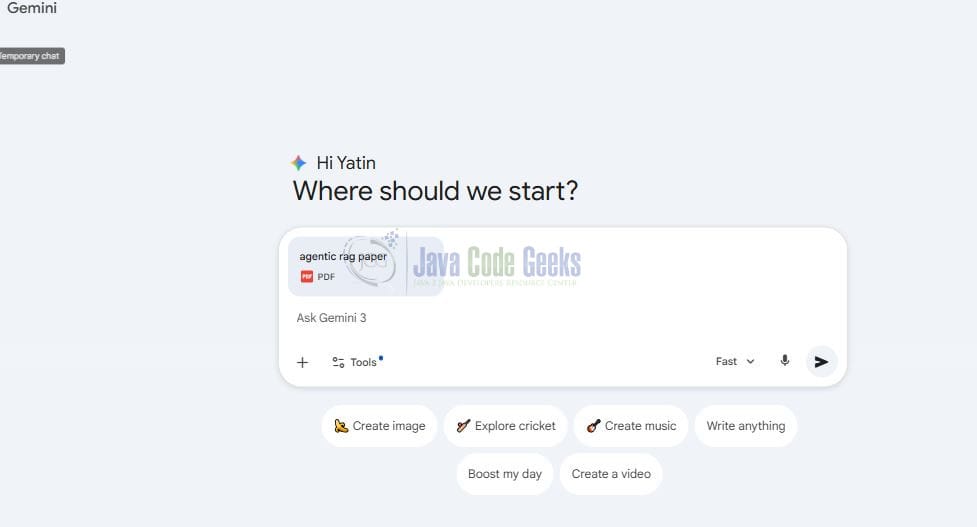
2.1 Uploading Documents
Many Gemini-powered interfaces allow you to drag and drop documents or paste text directly into a text box. Supported formats typically include plain text, PDFs, Word documents, and spreadsheets. Once uploaded, the interface automatically preprocesses the document, extracting text, tables, and metadata to make it queryable. Some UIs also allow batch uploads, indexing multiple documents for cross-document queries.
2.2 Building Prompts in the UI
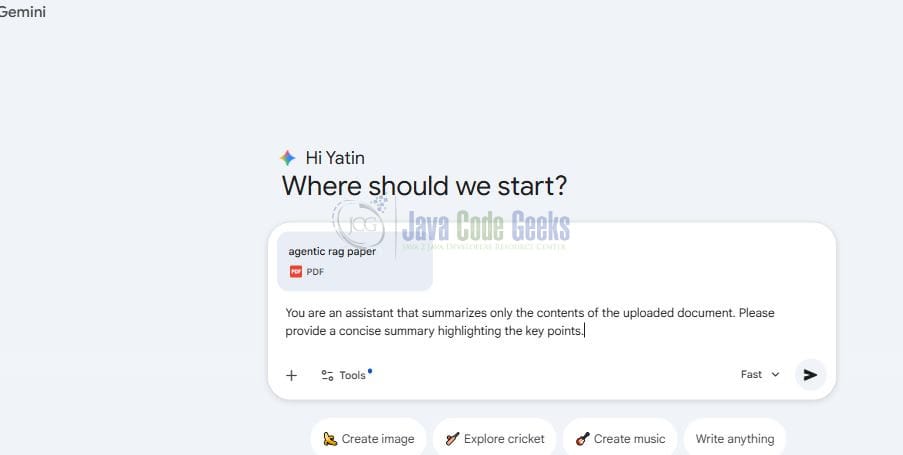
You can construct prompts directly in the interface to query uploaded documents or the general model. Key features include:
- Input field: Paste questions, instructions, or context directly into the UI.
- Document reference: Select “Use Document” to let the model reference uploaded content for answers.
- Response settings: Adjust length, temperature (creativity), tone, or style to control the output.
- Advanced options: Some UIs allow chaining prompts, using multiple documents, or configuring role-based instructions (e.g., “act as a research assistant”).
Example summarization prompt:
You are an assistant that summarizes only the contents of the uploaded document. Please provide a concise summary highlighting the key points, and structure it as bullet points if applicable.
2.3 Receiving Responses
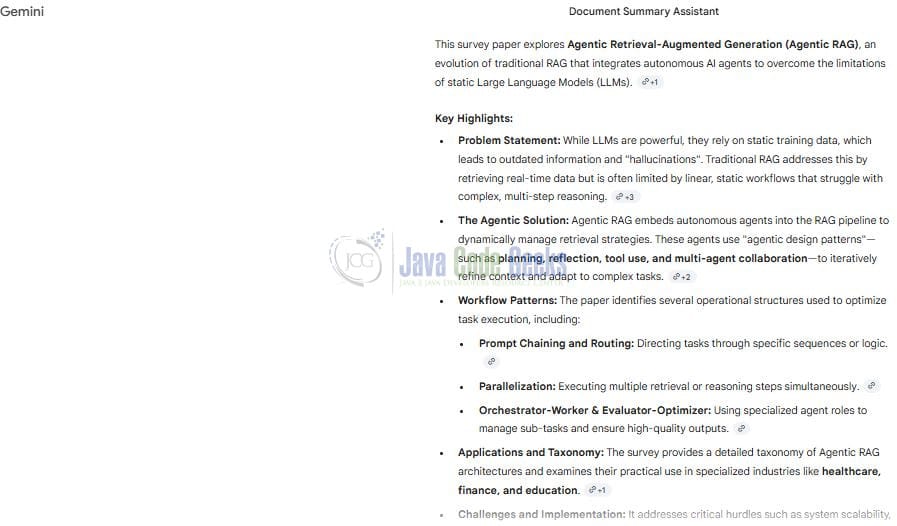
Once the prompt is submitted, the Gemini UI returns responses instantly in a structured, readable format. Features often include:
- Text output: Direct answers, summaries, explanations, or generated content.
- Interactive follow-ups: Continue the conversation, ask clarifying questions, or dive deeper into specific sections of the document.
- Document highlighting: Some UIs highlight referenced text in the uploaded document to show exactly where answers come from.
- Export options: Copy responses, download as text or PDF, or integrate via connectors (e.g., Google Drive, Slack, or internal knowledge bases).
2.4 Benefits of a UI-Based Approach
- No setup required: Avoid configuring Docker, Python environments, or local GPUs.
- Immediate results: Test prompts, evaluate responses, and iterate quickly.
- Document-aware: Supports multiple file types, maintains context, and allows cross-document queries.
- User-friendly: Designed for non-technical users, rapid prototyping, collaborative editing, and knowledge sharing.
- Safe experimentation: Test different prompt strategies without impacting production systems.
- Integration-ready: Built-in connectors simplify moving insights into your workflows, dashboards, or team collaboration tools.
3. Interacting with Local LLMs via UI
While Google Gemini provides a scalable cloud-based experience, some use cases require running a local LLM on your own hardware—for example, when working with highly sensitive data, offline environments, or specialized domain models. Modern local LLMs can also provide UI-based interaction similar to Gemini, making them accessible even for non-technical users. This example uses the Chatbox AI client application and smart assistant.
3.1 Setting Up a Local LLM
To use a local LLM, you typically need:
- Hardware: A workstation or server with sufficient GPU memory (high-end consumer GPUs or cloud VM with GPU support).
- Model files: Download a pre-trained open-source LLM (e.g., LLaMA, Mistral, Falcon) in your preferred format.
- UI tool: Use a local interface such as Text Generation WebUI, Hugging Face Spaces, or LangChain + Streamlit to interact with the model without coding.
- Dependencies: Python environment, PyTorch or TensorFlow, and supporting libraries for model execution.
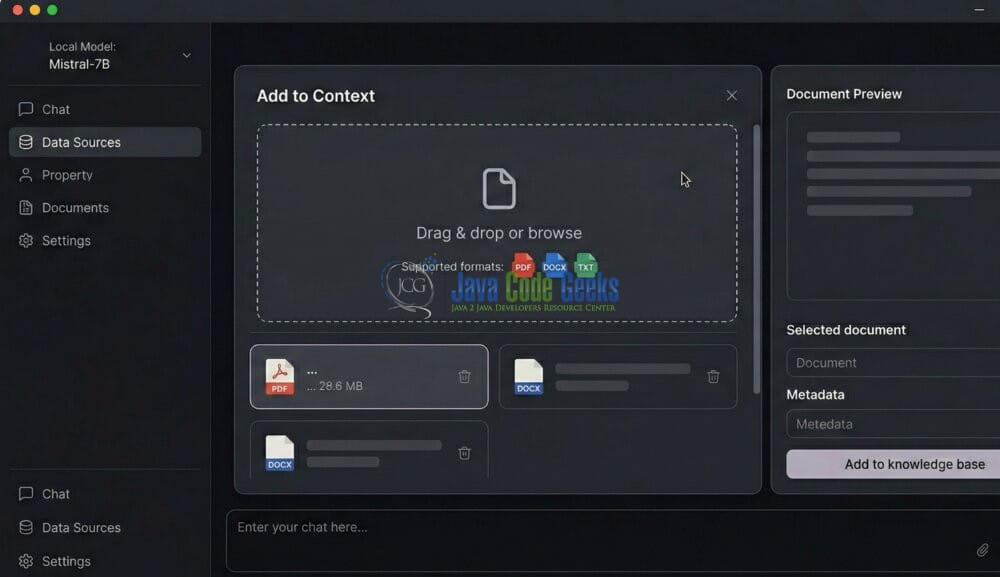
3.2 Uploading Documents to a Local LLM UI
Most local LLM UIs support drag-and-drop or copy-paste of text content. You can typically upload:
- Plain text files (.txt)
- PDFs
- Word documents (.docx)
- CSV or spreadsheets (for structured data)
The UI may include a preprocessing step to split large documents into chunks for better context handling.
3.3 Crafting Prompts Locally
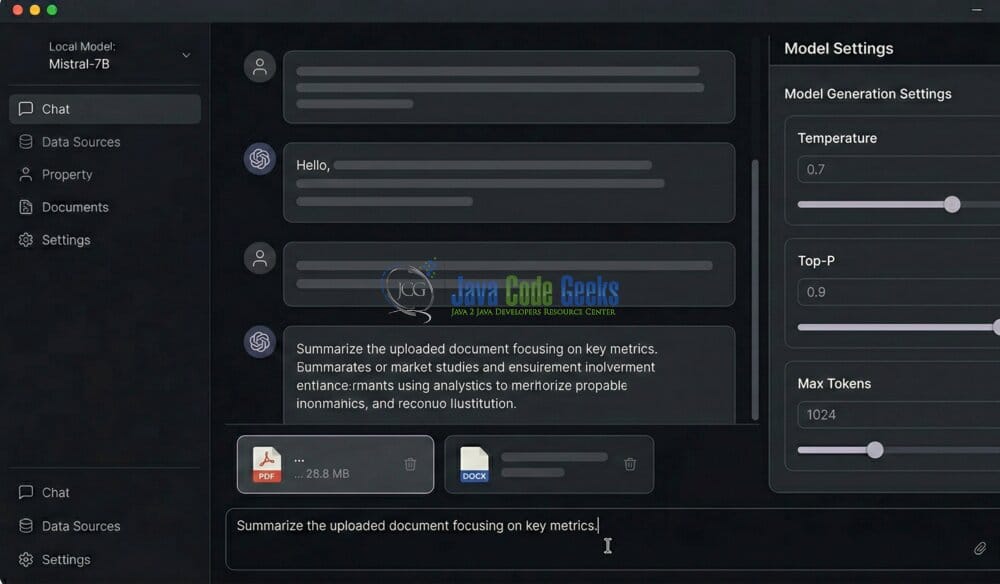
The process mirrors cloud-based UI workflows:
- Enter your question or instruction in the input field.
- Select the document or data context, if applicable.
- Adjust generation settings like maximum tokens, temperature, and repetition penalty.
- Some UIs support role instructions or multi-step pipelines (e.g., summarization → insight extraction).
Example prompt: "Summarize the uploaded document focusing only on the key metrics and recommendations."
3.4 Receiving Responses Locally
- Text output: Direct answers, summaries, or explanations.
- Interactive follow-ups: Refine or ask clarifying questions on the same document context.
- Export options: Copy results, save to text or CSV files, or integrate into internal scripts.
4. Conclusion
Using Google Gemini empowers organizations to build robust, document-aware AI applications without the overhead of managing local infrastructure. By combining cloud scalability, strong security, and efficient document processing, Gemini enables a wide range of use cases—from summarization and knowledge retrieval to advanced pipelines with embeddings, vector search, and RAG. Whether accessed via a user-friendly UI or programmatically through APIs, Gemini allows teams to focus on generating insights, improving workflows, and accelerating AI-driven decision-making, all while keeping data privacy and operational efficiency at the forefront.