
Yet again, a small tip towards configuring your Java development environment on a Mac (OSX 10.8.x+). If you are really starting right now, I recommend you read one of my previous posts, a quick and clean (I suppose) way to set up your environment variables and start your Java coding. My tip for today is about easily switching from one JDK version to another on your command line. Currently at work I am forced to compile towards JDK6, at the same time I want to use as much as possible JDK7 on my pet projects and ‘force’ my tools (namely IDE(s)) to use the related jvm.
Last but not least, since we are getting closer on the JDK8 release, it is really interesting to experiment a bit on the new features, through the available early snapshot releases, provided by Oracle.
I have modified my ~/.profile adding the following lines. Of course versions and paths on certain JDK(s) depend on the releases you have installed, by downloading the related dmg(s) and running the setup package/installer.
#export CUSTOM HOME(S) variables

#last JDK 6 by Apple
export JAVA_6_HOME=/System/Library/Frameworks/JavaVM.framework/Home
#latest JDK 7 by Oracle
export JAVA_7_HOME=/Library/Java/JavaVirtualMachines/jdk1.7.0_13.jdk/Contents/Home
#latest preview JDK 8 by Oracle
export JAVA_8_HOME=/Library/Java/JavaVirtualMachines/jdk1.8.0.jdk/Contents/Home

#default JDK is  7
export JAVA_HOME=$JAVA_7_HOME
What I really did is to store and export 3 different environment variables,one fore each flavor of the JDK I currently have installed. Then I select the one to be the default (that is JDK7)- see inline comment. At the same time, I am actually creating 3 different alias commands to update the value of the JAVA _HOME variable depending on the jdk I wish to have ‘loaded’ in my current shell. So when I open my terminal my default java-vm setting is set to JDK7
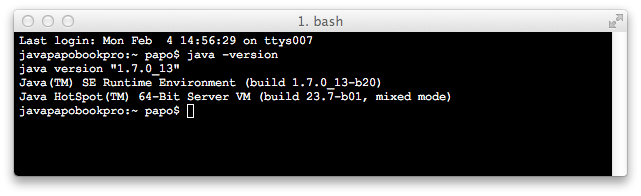
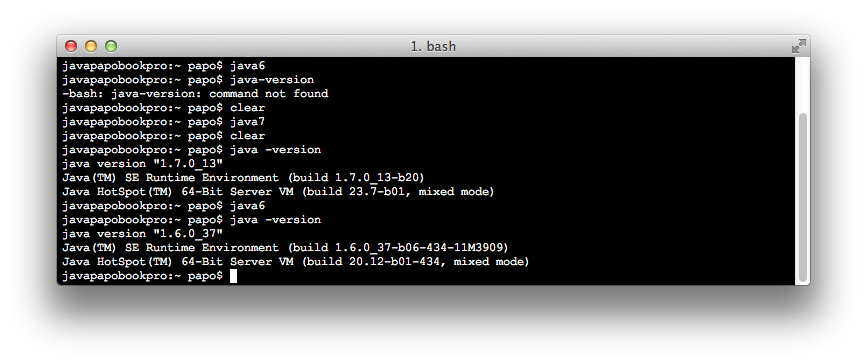
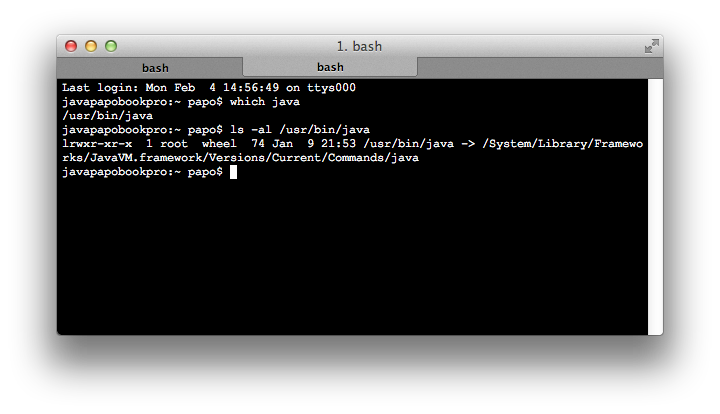
Note 1: I still preserve the symbolic link as, configured by the system. Meaning, if you do a ‘which java’ on your command line, you will get a ‘ /usr/bin/java ‘ sym link. Which is already loaded in your $PATH. The sym link as shown points to ‘/System/Library/Frameworks/JavaVM.framework/Versions/Current/Commands/java’ . Some, may argue that you could update this specific configuration but, I don’t find it problematic.
Note 2: There are lots of people asking how to force Eclipse, to use a very specific JDK version, especially when they have installed different JDK(s) on their Mac. Eventually I am using the eclipse.ini way (go to the Eclipse.app -> right click -> Show Package Contents-> Contents/MacOS/eclipse.ini). Add a line like the following – before the -vmargs section – in my case I force eclipse to use the latest version of JDK7.
-vm
/Library/Java/JavaVirtualMachines/jdk1.7.0_13.jdk/Contents/Home/bin/
Reference: Multiple Java JDK(s), on your MacOSX environment from our JCG partner Paris Apostolopoulos at the Papo’s log blog.



There is also java_home.
export JAVA_HOME=$(/usr/libexec/java_home -v 1.8)
Yes true, unfortunately this post is not updated . I have updated the notes on my blog . Here is the link http://javapapo.blogspot.gr/2013/12/setup-your-java-development-environment.html
Thank you for the detailed overview.