
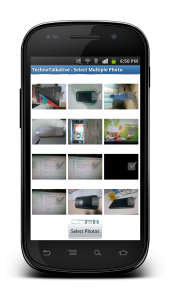
Today i am going to discuss about implementation of selecting multiple photos from Photo Gallery. You know, i have searched enough to find out a solution for selecting multiple images from android’s native gallery. There are 2 ways to implement multi selection of images in gallery: 1) Intent for getting multiple images
2) Define custom gallery with fetching and loading photos from native gallery.
1. Intent for getting multiple images:
As being native lover, i tried to find out a solution by implementing solution provided same like we select single image from gallery, by using below code:
Intent intent = new Intent();
intent.setType('image/*');
intent.setAction(Intent.ACTION_GET_CONTENT);
startActivityForResult(Intent.createChooser(intent, 'Select Picture'), PICK_IMAGE);
But i am unable to implement a solution for selecting multiple images using the above way. Yes i came to know we can use SEND_MULTIPLE intent but i am sure how do we implement this and select mutiple images. I will try to implement it and share with you if i will get success.
2. Define custom gallery with fetching and loading photos from native gallery:
As we dont know about the Intent way solution, this is the good idea for selecting multiple photos. One of my friend Vikas Kanani is already done with this solution earlier. I did thorough testing and came to know about the below issues:
- Images are loading very slow if we are having larger number of images, lets say 2000-5000
- Crashing if we load more images
For resolving above issues, what i did? I have implemented Asynchronous image loading so that every image gets loaded asynchronously.

Now, lets implement improved solution
Step 1: Download Image loader library from Here.
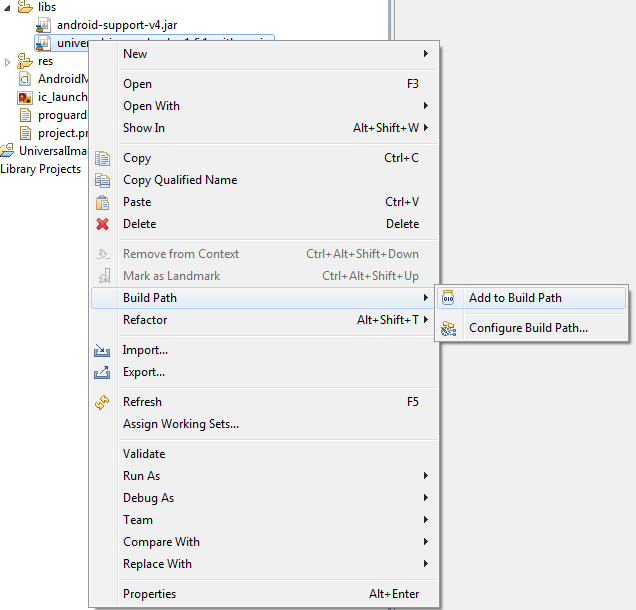
Step 2: Add the library inside the libs folder, right click on the jar file -> Select Add to Build Path
Step 3: Define row layout for image item
row_multiphoto_item.xml
<?xml version='1.0' encoding='utf-8'?>
<RelativeLayout xmlns:android='http://schemas.android.com/apk/res/android'
    android:layout_width='fill_parent'
    android:layout_height='fill_parent' >

    <ImageView
        android:id='@+id/imageView1'
        android:layout_width='100dp'
        android:layout_height='100dp'
        android:src='@drawable/ic_launcher' />

    <CheckBox
        android:id='@+id/checkBox1'
        android:layout_width='wrap_content'
        android:layout_height='wrap_content'
        android:layout_alignRight='@+id/imageView1'
        android:layout_centerVertical='true'/>

</RelativeLayout>
Step 4: Define activity layout with GridView
ac_image_grid.xml
<?xml version='1.0' encoding='utf-8'?>
<RelativeLayout xmlns:android='http://schemas.android.com/apk/res/android'
    android:layout_width='fill_parent'
    android:layout_height='fill_parent' >

    <GridView
        android:id='@+id/gridview'
        android:layout_width='fill_parent'
        android:layout_height='fill_parent'
        android:columnWidth='100dip'
        android:gravity='center'
        android:horizontalSpacing='4dip'
        android:numColumns='auto_fit'
        android:stretchMode='columnWidth'
        android:layout_above='@+id/button1'
        android:verticalSpacing='2dip' />

    <Button
        android:id='@+id/button1'
        android:layout_alignParentBottom='true'
        android:layout_width='wrap_content'
        android:layout_height='wrap_content'
        android:layout_centerHorizontal='true'
        android:onClick='btnChoosePhotosClick'
        android:text='Select Photos' />

</RelativeLayout>
Step 5: Define a UILApplication to declare application level configuration settings
UILApplication.java
package com.technotalkative.multiphotoselect;

import android.app.Application;

import com.nostra13.universalimageloader.cache.disc.naming.Md5FileNameGenerator;
import com.nostra13.universalimageloader.core.ImageLoader;
import com.nostra13.universalimageloader.core.ImageLoaderConfiguration;

/**
 * @author Paresh Mayani (@pareshmayani)
 */
public class UILApplication extends Application {

 @Override
 public void onCreate() {
  super.onCreate();

  // This configuration tuning is custom. You can tune every option, you may tune some of them,
  // or you can create default configuration by
  //  ImageLoaderConfiguration.createDefault(this);
  // method.
  ImageLoaderConfiguration config = new ImageLoaderConfiguration.Builder(getApplicationContext())
   .threadPoolSize(3)
   .threadPriority(Thread.NORM_PRIORITY - 2)
   .memoryCacheSize(1500000) // 1.5 Mb
   .denyCacheImageMultipleSizesInMemory()
   .discCacheFileNameGenerator(new Md5FileNameGenerator())
   .enableLogging() // Not necessary in common
   .build();
  // Initialize ImageLoader with configuration.
  ImageLoader.getInstance().init(config);
 }
}
Step 6: Define a base activity to create a singleton instance of ImageLoader class.
BaseActivity.java
package com.technotalkative.multiphotoselect;

import android.app.Activity;

import com.nostra13.universalimageloader.core.ImageLoader;

/**
 * @author Paresh Mayani (@pareshmayani)
 */
public abstract class BaseActivity extends Activity {

 protected ImageLoader imageLoader = ImageLoader.getInstance();

}
Step 7: Now, Its time to define a main activity where we can write a logic for fetching photos from native gallery. Here i have also defined an ImageAdapter for the GridView.
MultiPhotoSelectActivity.java
package com.technotalkative.multiphotoselect;

import java.util.ArrayList;

import android.content.Context;
import android.database.Cursor;
import android.graphics.Bitmap;
import android.os.Bundle;
import android.provider.MediaStore;
import android.util.Log;
import android.util.SparseBooleanArray;
import android.view.LayoutInflater;
import android.view.View;
import android.view.ViewGroup;
import android.view.animation.Animation;
import android.view.animation.AnimationUtils;
import android.widget.BaseAdapter;
import android.widget.CheckBox;
import android.widget.CompoundButton;
import android.widget.Toast;
import android.widget.CompoundButton.OnCheckedChangeListener;
import android.widget.GridView;
import android.widget.ImageView;

import com.nostra13.universalimageloader.core.DisplayImageOptions;
import com.nostra13.universalimageloader.core.assist.SimpleImageLoadingListener;

/**
 * @author Paresh Mayani (@pareshmayani)
 */
public class MultiPhotoSelectActivity extends BaseActivity {

 private ArrayList<String> imageUrls;
 private DisplayImageOptions options;
 private ImageAdapter imageAdapter;

 @Override
 public void onCreate(Bundle savedInstanceState) {
  super.onCreate(savedInstanceState);
  setContentView(R.layout.ac_image_grid);

  final String[] columns = { MediaStore.Images.Media.DATA, MediaStore.Images.Media._ID };
  final String orderBy = MediaStore.Images.Media.DATE_TAKEN;
  Cursor imagecursor = managedQuery(
    MediaStore.Images.Media.EXTERNAL_CONTENT_URI, columns, null,
    null, orderBy + ' DESC');

  this.imageUrls = new ArrayList<String>();

  for (int i = 0; i < imagecursor.getCount(); i++) {
   imagecursor.moveToPosition(i);
   int dataColumnIndex = imagecursor.getColumnIndex(MediaStore.Images.Media.DATA);
   imageUrls.add(imagecursor.getString(dataColumnIndex));

   System.out.println('=====> Array path => '+imageUrls.get(i));
  }

  options = new DisplayImageOptions.Builder()
   .showStubImage(R.drawable.stub_image)
   .showImageForEmptyUri(R.drawable.image_for_empty_url)
   .cacheInMemory()
   .cacheOnDisc()
   .build();

  imageAdapter = new ImageAdapter(this, imageUrls);

  GridView gridView = (GridView) findViewById(R.id.gridview);
  gridView.setAdapter(imageAdapter);
  //gridView.setOnItemClickListener(new OnItemClickListener() {
  // @Override
  //public void onItemClick(AdapterView<?> parent, View view, int position, long id) {
  // startImageGalleryActivity(position);
  // }
  //});

 }

 @Override
 protected void onStop() {
  imageLoader.stop();
  super.onStop();
 }

 public void btnChoosePhotosClick(View v){

  ArrayList<String> selectedItems = imageAdapter.getCheckedItems();
  Toast.makeText(MultiPhotoSelectActivity.this, 'Total photos selected: '+selectedItems.size(), Toast.LENGTH_SHORT).show();
  Log.d(MultiPhotoSelectActivity.class.getSimpleName(), 'Selected Items: ' + selectedItems.toString());
 }

 /*private void startImageGalleryActivity(int position) {
  Intent intent = new Intent(this, ImagePagerActivity.class);
  intent.putExtra(Extra.IMAGES, imageUrls);
  intent.putExtra(Extra.IMAGE_POSITION, position);
  startActivity(intent);
 }*/

 public class ImageAdapter extends BaseAdapter {

  ArrayList<String> mList;
  LayoutInflater mInflater;
  Context mContext;
  SparseBooleanArray mSparseBooleanArray;

  public ImageAdapter(Context context, ArrayList<String> imageList) {
   // TODO Auto-generated constructor stub
   mContext = context;
   mInflater = LayoutInflater.from(mContext);
   mSparseBooleanArray = new SparseBooleanArray();
   mList = new ArrayList<String>();
   this.mList = imageList;

  }

  public ArrayList<String> getCheckedItems() {
   ArrayList<String> mTempArry = new ArrayList<String>();

   for(int i=0;i<mList.size();i++) {
    if(mSparseBooleanArray.get(i)) {
     mTempArry.add(mList.get(i));
    }
   }

   return mTempArry;
  }

  @Override
  public int getCount() {
   return imageUrls.size();
  }

  @Override
  public Object getItem(int position) {
   return null;
  }

  @Override
  public long getItemId(int position) {
   return position;
  }

  @Override
  public View getView(int position, View convertView, ViewGroup parent) {

   if(convertView == null) {
    convertView = mInflater.inflate(R.layout.row_multiphoto_item, null);
   }

   CheckBox mCheckBox = (CheckBox) convertView.findViewById(R.id.checkBox1);
   final ImageView imageView = (ImageView) convertView.findViewById(R.id.imageView1);

   imageLoader.displayImage('file://'+imageUrls.get(position), imageView, options, new SimpleImageLoadingListener() {
    @Override
    public void onLoadingComplete(Bitmap loadedImage) {
     Animation anim = AnimationUtils.loadAnimation(MultiPhotoSelectActivity.this, R.anim.fade_in);
     imageView.setAnimation(anim);
     anim.start();
    }
   });

   mCheckBox.setTag(position);
   mCheckBox.setChecked(mSparseBooleanArray.get(position));
   mCheckBox.setOnCheckedChangeListener(mCheckedChangeListener);

   return convertView;
  }

  OnCheckedChangeListener mCheckedChangeListener = new OnCheckedChangeListener() {

   @Override
   public void onCheckedChanged(CompoundButton buttonView, boolean isChecked) {
    // TODO Auto-generated method stub
    mSparseBooleanArray.put((Integer) buttonView.getTag(), isChecked);
   }
  };
 }
}
Download this example from here: Android – Select multiple photos from Gallery
Reference: Android – Select multiple photos from Gallery from our JCG partner Paresh N. Mayani at the TechnoTalkative blog.




This is excellent. Thank you!
Thanks much. Please give feedback on original thread :)
i got a error when i export it…….
conversion to dalvic format failed..:(
Good article.
Is it possible to show image gallery in fragment Activity?
Can you reupload the source code. 4shared is having serious issues/
When i scroll for more images, I get out of memory exception. I added jar file to build path.
05-01 00:37:00.731: E/ImageLoader(13442): java.lang.OutOfMemoryError
05-01 00:37:00.731: E/ImageLoader(13442): at android.graphics.BitmapFactory.nativeDecodeStream(Native Method)
05-01 00:37:00.731: E/ImageLoader(13442): at android.graphics.BitmapFactory.decodeStream(BitmapFactory.java:530)
05-01 00:37:00.731: E/ImageLoader(13442): at com.nostra13.universalimageloader.core.ImageDecoder.decode(ImageDecoder.java:83)
05-01 00:37:00.731: E/ImageLoader(13442): at com.nostra13.universalimageloader.core.LoadAndDisplayImageTask.decodeWithOOMHandling(LoadAndDisplayImageTask.java:187)
05-01 00:37:00.731: E/ImageLoader(13442): at com.nostra13.universalimageloader.core.LoadAndDisplayImageTask.decodeImage(LoadAndDisplayImageTask.java:170)
05-01 00:37:00.731: E/ImageLoader(13442): at com.nostra13.universalimageloader.core.LoadAndDisplayImageTask.tryLoadBitmap(LoadAndDisplayImageTask.java:126)
05-01 00:37:00.731: E/ImageLoader(13442): at com.nostra13.universalimageloader.core.LoadAndDisplayImageTask.run(LoadAndDisplayImageTask.java:72)
05-01 00:37:00.731: E/ImageLoader(13442): at java.util.concurrent.Executors$RunnableAdapter.call(Executors.java:390)
05-01 00:37:00.731: E/ImageLoader(13442): at java.util.concurrent.FutureTask.run(FutureTask.java:234)
05-01 00:37:00.731: E/ImageLoader(13442): at java.util.concurrent.ThreadPoolExecutor.runWorker(ThreadPoolExecutor.java:1080)
05-01 00:37:00.731: E/ImageLoader(13442): at java.util.concurrent.ThreadPoolExecutor$Worker.run(ThreadPoolExecutor.java:573)
05-01 00:37:00.731: E/ImageLoader(13442): at java.lang.Thread.run(Thread.java:841)
how to select picture from gallery,Recent image folder and Download Folder in android. When use ACTION_GET_CONTENT . this function only get picture from gallery only. I show my code in below—- Intent intent = new Intent(); intent.setType(“image/*”); intent.setAction(Intent.ACTION_GET_CONTENT); startActivityForResult(Intent.createChooser(intent, “Complete action using”), 1); @Override protected void onActivityResult(int requestCode, int resultCode, Intent data) { if (requestCode == 1 && resultCode == RESULT_OK) { Uri selectedImageUri = data.getData(); if(selectedImageUri != null){ imagepath = getPath(selectedImageUri); Bitmap bitmap=BitmapFactory.decodeFile(imagepath); SelectImg.setImageBitmap(bitmap); selectText.setText(imagepath); } } } public String getPath(Uri uri) { String filePath =””; String[] projection = { MediaColumns.DATA }; Cursor cursor = managedQuery(uri, projection, null, null,… Read more »
your example not working in samsung s4. application is crash when open your apps
Your Application is crashing.
Please Fix the probelm….
Hey, would like to know how did you test that loading 2000 to 5000 photos would be slow?
hello>>
i want to select multiple photos from gallery and than display on imageview using intent or any other way ???